> Agents can also search and read this documentation through its [MCP server](https://docs.objkt.com/product/~gitbook/mcp).

# Introduction

Hello! 👋 We're objkt, the largest digital art marketplace on the Tezos blockchain.&#x20;

We believe art collecting should be fun, simple, and accessible. And since 2021, we've been building our platform to make that happen.

Fast forward to today: creators can tokenize their work and open new streams of income, collectors can explore over 7 million artworks, and curators and galleries can host exclusive digital events on objkt. Operating on the blockchain enables new ways of creating, sharing, and owning digital work—paving the way for a more inclusive art world.

If you're new here, no worries. Check out these starter guides to get you going. 👇

<table data-view="cards"><thead><tr><th data-type="content-ref"></th><th></th><th data-hidden data-card-cover data-type="image">Cover image</th><th data-hidden data-type="image">Cover image (dark)</th><th data-hidden data-type="image">Cover image (dark)</th><th data-hidden data-type="image">Cover image (dark)</th><th data-hidden data-card-cover-dark data-type="image">Cover image (dark)</th></tr></thead><tbody><tr><td><a href="https://docs.objkt.com/product/getting-started/readme/creator-starter-guide">Creator starter guide</a></td><td>Learn how to mint, list, and sell your art.</td><td><a href="https://3156114251-files.gitbook.io/~/files/v0/b/gitbook-x-prod.appspot.com/o/spaces%2FbYOVFkgo9EYVWbg3wj9H%2Fuploads%2FlHxTKI9qJz4xIzkNCIUT%2Fcard_creator_light.png?alt=media&amp;token=604ada96-9b2c-42c6-905a-e8b1c591dd7e">card_creator_light.png</a></td><td><a href="https://3156114251-files.gitbook.io/~/files/v0/b/gitbook-x-prod.appspot.com/o/spaces%2FbYOVFkgo9EYVWbg3wj9H%2Fuploads%2FvojyNEBWifevzBhrT4gE%2Fcard_creator_dark.png?alt=media&amp;token=58b49002-1fd3-417f-af30-0ede26e0246e">card_creator_dark.png</a></td><td></td><td></td><td><a href="https://3156114251-files.gitbook.io/~/files/v0/b/gitbook-x-prod.appspot.com/o/spaces%2FbYOVFkgo9EYVWbg3wj9H%2Fuploads%2FvojyNEBWifevzBhrT4gE%2Fcard_creator_dark.png?alt=media&amp;token=58b49002-1fd3-417f-af30-0ede26e0246e">card_creator_dark.png</a></td></tr><tr><td><a href="https://docs.objkt.com/product/getting-started/readme/collector-starter-guide">Collector starter guide</a></td><td>Learn how to discover and collect art on objkt.</td><td><a href="https://3156114251-files.gitbook.io/~/files/v0/b/gitbook-x-prod.appspot.com/o/spaces%2FbYOVFkgo9EYVWbg3wj9H%2Fuploads%2Fy0aS18UlfImkO1tpuxTe%2Fcard_collector_light.png?alt=media&amp;token=72c3c7d7-6513-4fe2-b48e-d08cce4d1094">card_collector_light.png</a></td><td></td><td><a href="https://3156114251-files.gitbook.io/~/files/v0/b/gitbook-x-prod.appspot.com/o/spaces%2FbYOVFkgo9EYVWbg3wj9H%2Fuploads%2F3ONRAhKachdAlP5aXA0q%2Fcard_collector_dark.png?alt=media&amp;token=90911c2f-5638-4c19-94d9-9841edaa438b">card_collector_dark.png</a></td><td></td><td><a href="https://3156114251-files.gitbook.io/~/files/v0/b/gitbook-x-prod.appspot.com/o/spaces%2FbYOVFkgo9EYVWbg3wj9H%2Fuploads%2F3ONRAhKachdAlP5aXA0q%2Fcard_collector_dark.png?alt=media&amp;token=90911c2f-5638-4c19-94d9-9841edaa438b">card_collector_dark.png</a></td></tr><tr><td><a href="https://docs.objkt.com/product/objkt-protocol/api">API</a></td><td>Power your project with the objkt API.</td><td><a href="https://3156114251-files.gitbook.io/~/files/v0/b/gitbook-x-prod.appspot.com/o/spaces%2FbYOVFkgo9EYVWbg3wj9H%2Fuploads%2FkeXFlFMONHtv5SfEd3pM%2Fcard_api_light.png?alt=media&amp;token=db1a113d-c58d-4593-8ee8-8f467fa740e1">card_api_light.png</a></td><td></td><td></td><td><a href="https://3156114251-files.gitbook.io/~/files/v0/b/gitbook-x-prod.appspot.com/o/spaces%2FbYOVFkgo9EYVWbg3wj9H%2Fuploads%2FdZLHarxjeMjhJWJY0Ant%2Fcard_api_dark.png?alt=media&amp;token=35634772-e7cc-4832-83ee-3d5c5de70734">card_api_dark.png</a></td><td><a href="https://3156114251-files.gitbook.io/~/files/v0/b/gitbook-x-prod.appspot.com/o/spaces%2FbYOVFkgo9EYVWbg3wj9H%2Fuploads%2FdZLHarxjeMjhJWJY0Ant%2Fcard_api_dark.png?alt=media&amp;token=35634772-e7cc-4832-83ee-3d5c5de70734">card_api_dark.png</a></td></tr><tr><td><a href="https://docs.objkt.com/product/getting-started/readme/how-to-get-help">How to get help</a></td><td>Reach out if you need help.</td><td><a href="https://3156114251-files.gitbook.io/~/files/v0/b/gitbook-x-prod.appspot.com/o/spaces%2FbYOVFkgo9EYVWbg3wj9H%2Fuploads%2FkqooAZoNL0nGDcS7cR9Z%2Fcard_support_light.png?alt=media&amp;token=7168f0c1-2d3b-4f73-8715-ff546c96fde1">card_support_light.png</a></td><td></td><td></td><td></td><td><a href="https://3156114251-files.gitbook.io/~/files/v0/b/gitbook-x-prod.appspot.com/o/spaces%2FbYOVFkgo9EYVWbg3wj9H%2Fuploads%2FyDtFttG9GRaJdJycIguo%2Fcard_support_dark.png?alt=media&amp;token=ab9f50d6-4c40-4f7c-af85-3cfaa6bcc145">card_support_dark.png</a></td></tr></tbody></table>


# Creator starter guide

Hello, artist! 👋

Ready to join objkt and share your art with the world? This guide will show you how to quickly turn your creations into digital pieces to sell and start earning right away.&#x20;

{% stepper %}
{% step %}

### 👩‍🏫 The basics&#x20;

{% hint style="info" %}
**TL;DR:** We're on Tezos, the currency is tez, you will turn your art into NFTs, and you need a wallet.
{% endhint %}

Let’s start with a few basic terms:&#x20;

* objkt operates on the [*<mark style="background-color:purple;">Tezos blockchain</mark>*](#user-content-fn-1)[^1]
* The native cryptocurrency is [*<mark style="background-color:purple;">tez (XTZ)</mark>*](#user-content-fn-2)[^2]
* You’ll need a [*<mark style="background-color:purple;">crypto wallet</mark>*](#user-content-fn-3)[^3]
* As a creator, you'll turn your artwork into [*<mark style="background-color:purple;">NFTs</mark>*](#user-content-fn-4)[^4] *(non-fungible tokens)*&#x20;

**Analogy:** Imagine Tezos as a digital city. The currency people use here is tez, and your wallet is like your personal account. It holds your tez and all the artworks you collect.

Every time you buy something, the transaction is stamped into the city’s records. It can’t be changed and everyone can see it. That’s what makes ownership on the blockchain secure and transparent.

So, before you can create or collect something, let's get you a free wallet.
{% endstep %}

{% step %}

### 👝 Create a crypto wallet for free

{% hint style="info" %}
**TL;DR:** You need a crypto wallet to buy and store stuff. You can create one for free on objkt.&#x20;
{% endhint %}

There are quite a few different [*<mark style="background-color:purple;">wallet</mark>*](#user-content-fn-3)[^3] providers on Tezos (like Kukai, Temple, and AirGap). To keep things simple, we’ve integrated Kukai—one of the most popular choices—directly into objkt.&#x20;

**How to create a wallet and profile on objkt:**&#x20;

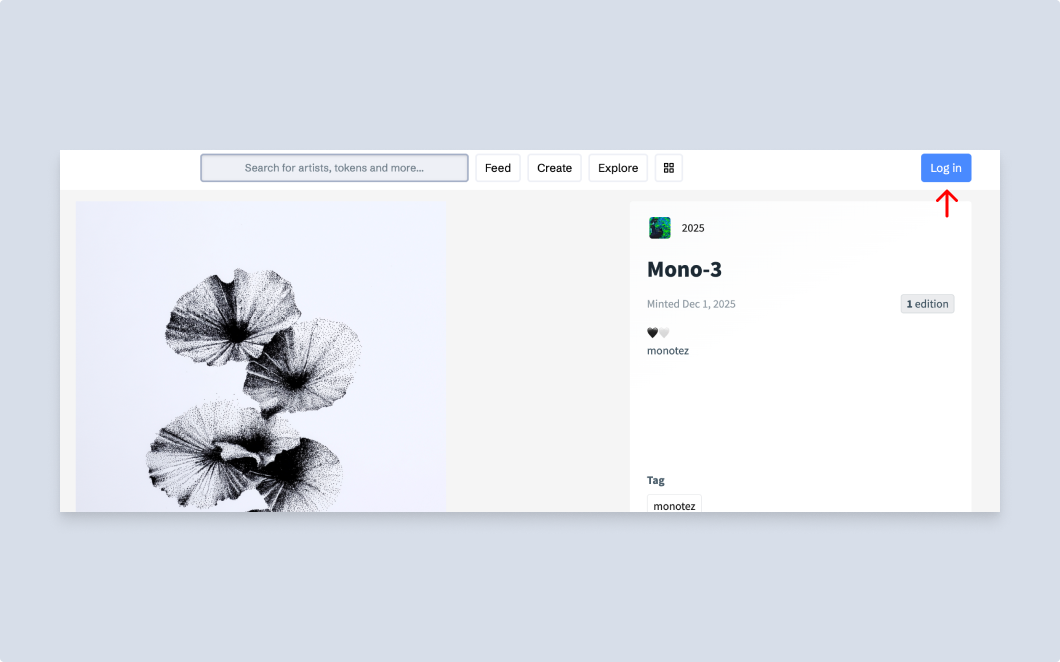
1. Go to [objkt.com](http://objkt.com) and click **Log in** at the top right.&#x20;
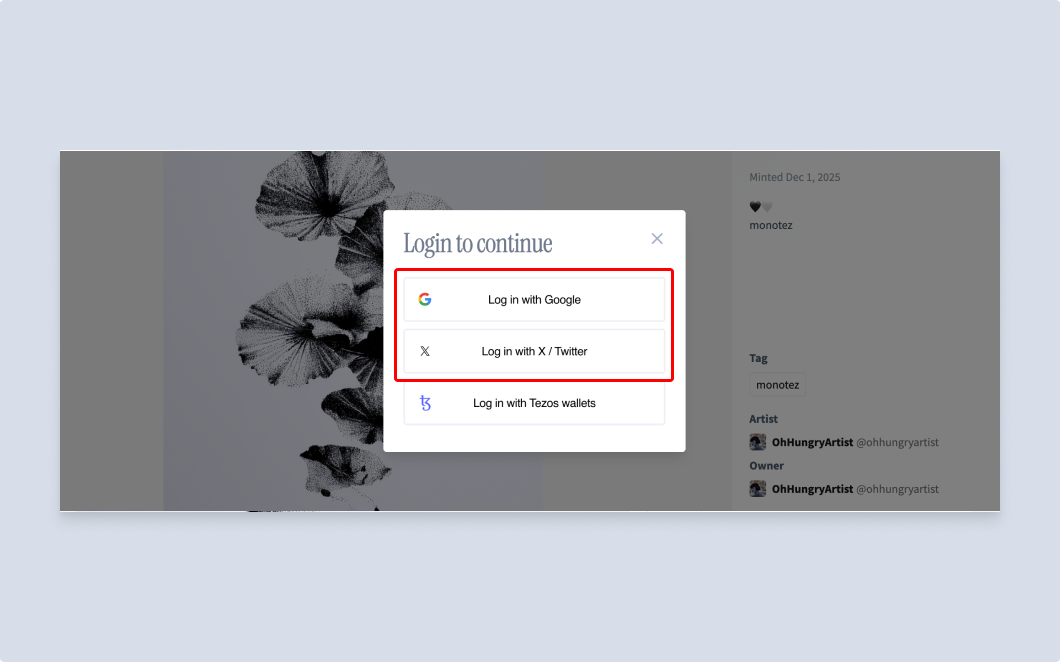
2. Sign up via Google or X/Twitter (recommended, fast and easy).
3. Alternatively, you can log in with other Tezos wallets if you already have one or want to create a profile through one of these wallets' sites.
4. Once you’re logged in… actually, that’s it! Your Kukai wallet is created and synced to your objkt profile.&#x20;

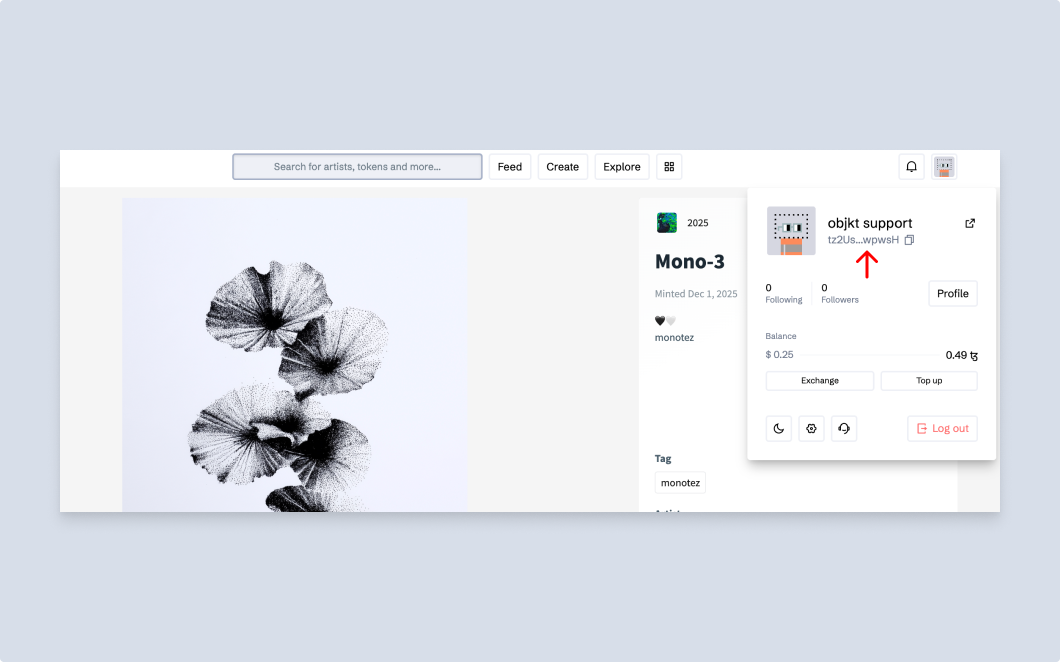
Every wallet comes with a unique [*<mark style="background-color:purple;">wallet address</mark>*](#user-content-fn-5)[^5]. On the profile dropdown (top-right corner), you’ll see the address below your name.&#x20;
{% endstep %}

{% step %}

### 🙍 Set up your profile

{% hint style="info" %}
**TL;DR:** Customize your profile to showcase who you are!&#x20;
{% endhint %}

As an creator, your profile doubles as a portfolio, showcasing artworks you've created, collected, and even exhibitions you’re a part of.

To edit it, click your avatar in the top-right corner, select **Profile**, and then hit the pen icon to to start customizing. Right now, you can update:

* Profile picture
* Name
* Bio/description
* Website
* Social links (X/Twitter, Discord, Farcaster, or your [Tezos domain](https://docs.objkt.com/product/product-guides/creating-a-profile/short-profile-url))

Represent yourself in the best light by sharing who you are, the inspiration behind your work, and how people can reach you.
{% endstep %}

{% step %}

### 💳 Get some tez

{% hint style="info" %}
**TL;DR:** You can easily buy tez using common payment methods like credit cards. &#x20;
{% endhint %}

You’ll need a bit of [tez (XTZ)](#user-content-fn-6)[^6] to get started. Creating an NFT or making a transaction requires a small network fee (called a “gas fee”). Just a few tez is enough.&#x20;

**How to top up tez on objkt:**&#x20;

1. Click your avatar at the top-right corner.
2. In the dropdown, click **Top up**.&#x20;
3. Complete the verification process (if prompted).
4. Purchase tez using your regular payment method (credit card, Google Pay, etc.).
5. Wait for the tez to arrive—it should only take a few seconds.&#x20;

**Note:** To check the latest tez price, go [here](https://tzkt.io/stats/xtz-price).

Now that you have a wallet and have some funds, time to create a collection and start to mint and sell your artwork!&#x20;
{% endstep %}

{% step %}

### 📁 Create a collection (optional)&#x20;

{% hint style="info" %}
**TL;DR:** Artworks must belong to a collection. Create one or use the public collection: open objkt.&#x20;
{% endhint %}

So, every artwork (NFT) on objkt belongs to a [*<mark style="background-color:purple;">collection</mark>*](#user-content-fn-7)[^7]**.**&#x20;

If you don't create one, you can just put your artworks into the public collection, [open objkt](https://objkt.com/collections/open_objkt), which showcases works from artists around the globe. The choice is yours!&#x20;

Collections are handy, though. Each tracks its own stats like floor price and sales. When you create one, objkt sets up a [*<mark style="background-color:purple;">smart contract</mark>*](#user-content-fn-8)[^8] on Tezos that gives you full ownership of your art.

**How to create a collection on objkt:**&#x20;

1. Click Create in the top navigation and go to the [Collection](https://objkt.com/create/collection) tab.&#x20;
2. Fill in the details: name, logo, description, and so on.
3. Choose a contract type:
   * **Standard listing**: Cheaper (\~1 tez), lets you create and sell NFTs, and even collaborate with other creators.&#x20;
   * **Open Editions**: Costs more (\~2.2 tez), but lets you create limited-time drops, where collectors can only get a new piece within a set window, e.g., 5 days.
4. Click **Create**, confirm the transaction, and you’re done.

For a more detailed guide on collections, check out [Collections/contracts](https://docs.objkt.com/product/product-guides/collections-contracts)
{% endstep %}

{% step %}

### 🎨 Mint your first NFT&#x20;

{% hint style="info" %}
**TL;DR:** Go to the [Create](https://objkt.com/create/token) page to turn your work into an NFT by "minting" it.&#x20;
{% endhint %}

Now for the fun part. 🥳

Minting is the process of creating a digital artwork as a token [*on the blockchain*](#user-content-fn-9)[^9], aka an [*NFT*](#user-content-fn-4)[^4].&#x20;

Say, you drew an illustration in Procreate, exported it as a JPG, here’s how to mint it:&#x20;

1. On obkjt, click [Create](https://objkt.com/create/token) in the top navigation.&#x20;
2. Choose the collection the NFT will belong to. Can be your own if you've created one, otherwise **open objkt** will be selected by default.&#x20;
3. Fill out the artwork details. Treat it like an exhibition label for a gallery wall—but online!
4. Some things to consider:
   * **Editions**: The number of copies you want. One makes it unique, ten makes it rarer, one hundred makes it more available. You can only set this once.
   * **Royalties**: How much you earn when the artwork is resold. A higher percentage means more for you, while a lower one encourages collectors to trade it more often.
5. When you’re done, click **Continue** and confirm the transaction.

That’s it. After a few minutes, your NFT will appear on your profile and be listed on the marketplace. For more info, check out [Minting a token](https://docs.objkt.com/product/product-guides/minting-a-token)
{% endstep %}

{% step %}

### 🛒 Sell your artwork&#x20;

{% hint style="info" %}
**TL;DR:** To sell your work, open the token's page, click **List**, fill out the form and submit.&#x20;
{% endhint %}

You’ve minted your NFT, now it’s time to sell it on the objkt marketplace. There are different ways to do so (like auctions or open editions), but let’s start with the simplest: [a fixed price listing](#user-content-fn-10)[^10].

**How to list an artwork for sale on objkt:**&#x20;

1. Go to your profile and filter for pieces you own.
2. Open the NFT you minted.
3. Click the **List** button.&#x20;
4. Choose how many editions to sell, set your price, and pick a currency. If you’re new, stick with tez (XTZ).
5. Optional settings: [*<mark style="background-color:purple;">referral rate</mark>*](#user-content-fn-11)[^11], [*<mark style="background-color:purple;">custom start date</mark>*](#user-content-fn-12)[^12], or [*<mark style="background-color:purple;">sale split</mark>*](#user-content-fn-13)[^13]. You can explore these later.
6. Confirm the transaction and you’re done. Good luck with your first sale!

Listing is simply setting a price and putting it out onto the marketplace. For a more comprehensive guide, including other ways to sell your work, check out [Token buy/sell](https://docs.objkt.com/product/product-guides/token-buy-sell)
{% endstep %}

{% step %}

### 📣 Get the word out&#x20;

{% hint style="success" %}
Don't just list and wait—go and market your work!
{% endhint %}

By now, your artwork should be live on objkt for others to discover and collect. But the work is not done! To grow your reputation and attract collectors, try to:&#x20;

* Share your work on X/Twitter and other social channels (remember to tag [@objktcom](https://x.com/objktcom))&#x20;
* Engage with collectors directly by thanking them or sharing their posts
* Join our [Discord](https://discord.gg/Gcr9Dk6qKk) community
* Follow and engage with artists and collectors on and off objkt
* Collaborate and create with other artists
* Keep your profile fresh with new works and updated info&#x20;
* Explore online and offline events where objkt artists gather

And so much more. The more you share and connect, the easier it is for collectors to find and support your art. Good luck! 🤞
{% endstep %}
{% endstepper %}

[^1]: Tezos is a blockchain that powers objkt and enables artists to mint, buy, and sell digital art.

[^2]: The native cryptocurrency of the Tezos blockchain, used for transactions and fees.

[^3]: A crypto wallet lets you store, send, and receive digital assets, like NFTs.&#x20;

[^4]: A unique digital token that proves ownership of an artwork or collectible on the blockchain.&#x20;

[^5]: Think of this as your digital ID on the blockchain, just like your digital home address where you send and receive tez or NFTs.

[^6]: [Check today's tez's price here.](https://tzkt.io/)

[^7]: A collection on objkt is a group of artworks (NFTs) you create or curate under one smart contract, like an album that holds all your artworks in one place.

[^8]: Code on the Tezos blockchain that automatically manages your collection and proves your ownership.

[^9]: This means your artwork is publicly recorded and verifiable as yours.

[^10]: Put up an artwork for sale at a set price.&#x20;

[^11]: Every token has a share link. If someone buys the token through that link, the sharer earns a small cut of the sale—this percentage is the referral rate you set when listing.

[^12]: In case you want the listing to start at a later date, rather than immediately.&#x20;

[^13]: Split the earnings from a sale with other wallets, e.g., a collaborator or curator.&#x20;


# Collector starter guide

Hello, art collector! 👋

This guide will show you how to instantly get started on objkt and buy your first artwork.

{% stepper %}
{% step %}

### 👩‍🏫 The basics&#x20;

{% hint style="info" %}
**TL;DR:** We're on Tezos, the currency is tez, and to get started—you need a wallet.
{% endhint %}

Let’s start with a few basic terms:&#x20;

* objkt operates on the [*<mark style="background-color:purple;">Tezos blockchain</mark>*](#user-content-fn-1)[^1]
* The native cryptocurrency is [*<mark style="background-color:purple;">tez (XTZ)</mark>*](#user-content-fn-2)[^2]
* You’ll need a [*<mark style="background-color:purple;">crypto wallet</mark>*](#user-content-fn-3)[^3]
* The artworks you collect on objkt are [*<mark style="background-color:purple;">NFTs</mark>*](#user-content-fn-4)[^4] *(non-fungible tokens)*&#x20;

**Analogy:** Imagine Tezos as a digital city. The currency people use here is tez, and your wallet is like your personal account. It holds your tez and all the artworks you collect.

Every time you buy something, the transaction is stamped into the city’s records. It can’t be changed and everyone can see it. That’s what makes ownership on the blockchain secure and transparent.

So, before you can create or collect something, let's get you a free wallet.
{% endstep %}

{% step %}

### 👝 Create a crypto wallet for free&#x20;

{% hint style="info" %}
**TL;DR:** You need a crypto wallet to buy and store stuff. You can create one for free on objkt.&#x20;
{% endhint %}

There are quite a few different [*<mark style="background-color:purple;">wallet</mark>*](#user-content-fn-3)[^3] providers on Tezos (like Kukai, Temple, and AirGap). To keep things simple, we’ve integrated Kukai—one of the most popular choices—directly into objkt.&#x20;

**How to create a wallet and profile on objkt:**&#x20;

1. Go to [objkt.com](http://objkt.com) and click **Log in** at the top right.&#x20;
2. Sign up via Google or X/Twitter (recommended, fast and easy).
3. Alternatively, you can log in with other Tezos wallets if you already have one or want to create a profile through one of these wallets' sites.
4. Once you’re logged in… actually, that’s it! Your wallet is created, and so is your profile.&#x20;

Every wallet comes with a unique [*<mark style="background-color:purple;">wallet address</mark>*](#user-content-fn-5)[^5]. On the profile dropdown (top-right corner), you’ll see the address below your name.&#x20;
{% endstep %}

{% step %}

### 💳 Get some tez&#x20;

{% hint style="info" %}
**TL;DR:** You can easily buy tez using common payment methods like credit cards. &#x20;
{% endhint %}

Well, you need some funds to collect art.&#x20;

More precisely, you’ll need to buy [tez (XTZ)](#user-content-fn-6)[^6], the currency you’ll use to purchase NFTs.

**How to top up tez on objkt:**&#x20;

1. Click your avatar at the top-right corner.
2. In the dropdown, click **Top up**.&#x20;
3. Complete the verification process (if prompted).
4. Purchase tez using your regular payment method (credit card, Google Pay, etc.).
5. Wait for the tez to arrive—it should only take a few seconds.&#x20;

How much tez should you get? Depends on your budget.&#x20;

We’ll always show the USD equivalent on token prices so you know exactly how much you’re spending. You can also check the latest tez price [here](https://tzkt.io/stats/xtz-price).
{% endstep %}

{% step %}

### 🔍 Go and discover art&#x20;

{% hint style="info" %}
**TL;DR:** Check our homepage, The Feed, X/Twitter, or just search and browse manually.
{% endhint %}

objkt is home to thousands of artists and millions of artworks, and there are many ways for you to explore:&#x20;

* Browse the [homepage](https://objkt.com/) for trending pieces.
* Use the search bar to look up a specific artist, collection, or theme; filter by category, price, or edition size.
* Follow artists you like and explore [The Feed](https://objkt.com/feed), your personalized stream of new works from people you follow.
* Check out [curations created](https://objkt.com/daily-curations) by the objkt team
* There’s also plenty of activity on [X/Twitter](https://x.com/search?q=objktcom\&src=typed_query), where artists, curators, collectors, and objkt share art every day.&#x20;
* Follow [our X profile](https://x.com/objktcom) and sign up to the official [objkt newsletter](https://4b81895d.sibforms.com/serve/MUIFACdCxQj3BAHUDi0UkB147PE3-rFX2rFDbx_u7HInFmtCI9B-VwkCsLKtrNa1i7njZqYotqc-Vy6bN0oRwzyEdSzgD8KfLkeLeRJ6Agkt_RBuIKlaQmZoM2gX_UG2EuMDc26Y9bUCyWno_7lReQ7v8yLZlL2rWhF1m35WiM0V08Cr4621gdfzYzBszXPk38FHlKklbp8G5uBV) to get daily updates on events, exclusive drops, and more.&#x20;
  {% endstep %}

{% step %}

### 🛍️ Buy your first artwork/NFT&#x20;

{% hint style="info" %}
**TL;DR:** Simply click purchase to buy an artwork. If it's not listed, make an offer to the owner.&#x20;
{% endhint %}

Found a piece you like and want to collect?

How to buy an NFT on objkt:&#x20;

1. Open the page of the artwork you want to buy.
2. If it’s listed for a fixed price, click **Buy** and confirm the purchase.
3. If it’s in an [*<mark style="background-color:purple;">auction</mark>*](#user-content-fn-7)[^7], place a bid and wait for the auction to end.
4. If it’s part of an [*<mark style="background-color:purple;">**open edition**</mark>*](#user-content-fn-8)[^8], [*<mark style="background-color:purple;">mint</mark>*](#user-content-fn-9)[^9] it before the time runs out.

Once the transaction is complete, the artwork will appear in your profile under **Collected**. It will be recorded on the blockchain and is now officially yours!

If you see an artwork you like but cannot purchase it—it's probably because it hasn't been put up for sale. In this case, you can either make an offer or reach out to the owner (check their bio for contact info).&#x20;

For more detailed info on different buy options, check out [Token buy/sell](https://docs.objkt.com/product/product-guides/token-buy-sell)
{% endstep %}

{% step %}

### 📣 Enjoy and share your collection

{% hint style="success" %}
Keep collecting, sharing, and most importantly—have fun!&#x20;
{% endhint %}

Congrats, you’re now a collector on objkt. What’s next?

* View all your collected artworks on your profile.
* Create [curations](https://objkt.com/create/curation) of your favorite artworks.&#x20;
* Share links to your collected pieces on [social media](https://x.com/search?q=collected%20on%20objktcom\&src=typed_query) (remember to tag [@objktcom](https://x.com/objktcom)).
* Support your favorite artists by buying more or joining their auctions.

Collecting isn’t just about owning art, it’s about connecting with artists and being part of their journey. Join us in making digital art accessible to everyone!
{% endstep %}
{% endstepper %}

[^1]: Tezos is a blockchain that powers objkt and enables artists to mint, buy, and sell digital art.

[^2]: The native cryptocurrency of the Tezos blockchain, used for transactions and fees.

[^3]: A crypto wallet lets you store, send, and receive digital assets, like NFTs.&#x20;

[^4]: A unique digital token that proves ownership of an artwork or collectible on the blockchain.

[^5]: Think of this as your digital ID on the blockchain, just like your digital home address where you send and receive tez or NFTs.

[^6]: [Check today's tez's price here.](https://tzkt.io/)

[^7]: A timed sale where collectors place bids to buy a token.

[^8]: A time-limited release where collectors can mint the artwork while it’s available.

[^9]: To collect and create your own copy of the NFT from that edition.


# objkt glossary

{% hint style="success" %}
Not sure what all the jargon means? Now you do. We'll keep this list updated over time, and will also sprinkle them as annotations across our documentation to keep you up to speed.
{% endhint %}

### The complete list&#x20;

#### **A**

— **Address:** A unique identifier for your wallet on the Tezos blockchain. Think of it like your digital home address. To check your wallet address, click your profile at the top-left, and it will be shown there. \
— **Auction:** A timed sale where collectors place bids to buy a token. When the auction ends, the highest bid wins (unless it’s a Dutch auction).

#### B

**— Baker:** A participant on the Tezos network that helps verify transactions and keep the blockchain running. When you delegate your tez to a baker such as [objkt baker](https://baker.objkt.com/) (the official baker run by objkt), you help secure the network and earn rewards in return.\
**— Bid:** An offer to purchase a token in an auction. In an English auction, the highest bid at the end wins; in a Dutch auction, the first bidder to accept the current price wins.\
**— Blockchain:** A public digital record that keeps track of all activity on the network, like minting, buying, and selling, in a transparent and permanent way. objkt operates on the Tezos blockchain.\
**— Bookmark:** Save a token you like so you can easily find it later (via the Bookmarks tab on your profile page).\
**— Burn:** Permanently delete a token from the blockchain. Once burned, it’s gone forever.

#### **C**

— **Collection:** Think of it as a folder of artworks. Every token has to belong to a collection. Creating a new collection will deploy your own smart contract on the Tezos blockchain. Create one [here](https://objkt.com/create/collection).\
— **Collector:** Someone who buys or owns artworks on objkt. \
— **Curation:** A themed group of tokens on objkt. Anyone with an objkt profile can create a curation. Curations can also be collaborative; you can invite others to join and curate with you. And unlike collection, artworks don't have to belong to curation. Create one [here](https://objkt.com/create/curation). \
— **Curation invite:** An invitation to join and contribute to a curation. \
— **Creator:** An artist who mints their art on objkt as NFTs.&#x20;

#### **D**

— **Delegate / Delegation:** When you assign your tez to a baker, allowing them to help secure the network on your behalf and share part of the rewards with you. Check out [objkt baker](https://baker.objkt.com/) for more info.\
— **Dutch auction:** An auction that starts at a high price and gradually drops over time until someone buys the token or the timer runs out.

#### **E**

— **Edition:** A copy of a token. Some are one-of-one; others have multiple editions available.\
— **English auction:** The most common type of auction. Bidders start low and increase their bids over time. The highest bid at the end wins the token.

#### **F**

— **FA2:** The Tezos token standard that defines how NFTs and fungible tokens behave.\
— **Feed:** Your personalized stream of updates from people you follow. If you are not following anyone, we show some artworks from artists we like. Check your feed out [here](https://objkt.com/feed).\
— **Floor price:** The lowest listed price in a collection. \
— **Follow:** Subscribe to another user on objkt to see their activity in your feed.

#### **G**

— **Gas fee:** A small tez fee paid to bakers when performing actions like minting or listing.\
— **Generative art:** Art created with code or algorithms. Each mint generates a unique output.

#### **I**

— **IPFS (InterPlanetary File System):** A decentralized way to store and share files online. It helps keep your NFTs and their media files safe and accessible, even if a website goes offline.

#### K

**— Kukai:** A Tezos wallet that lets you store tez and NFTs, connect to objkt, and sign transactions securely in your browser. It’s beginner-friendly and doesn’t require any downloads. To create a Kukai wallet, simply go on objkt, click Log in, and sign up via your social login. Simple!&#x20;

#### **L**

— **Listing:** Putting a token up for sale on objkt at a set price.

#### **M**

— **Marketplace:** Well, in our case, our platform, where people can create or collect art as NFTs. \
— **Metadata:** The data attached to a token, including title, description, and media file.\
— **Metadata URI:** The web address that points to a token’s metadata file, usually stored on IPFS.\
— **Mint / Minting:** The process of creating an NFT by turning your digital artwork into a token on the blockchain. Check out [Minting a token](https://docs.objkt.com/product/product-guides/minting-a-token) for more info.&#x20;

#### **N**

— **NFT (Non-Fungible Token):** A unique digital asset that proves ownership of an artwork or collectible. Check out [What's an NFT?](https://docs.objkt.com/product/fundamentals/getting-started/what-is-an-nft) for more info.

#### **O**

— **objkt:** The largest digital art marketplace on the Tezos blockchain (us!). \
— **objkt art pack:** A limited-time booster pack containing exclusive digital artworks from a roster of curated artists. [Season 1](https://objkt.com/art-packs) wrapped on July 31; season 2 coming soon.\
— **objkt baker:** Our own staking service where you can delegate and stake tez to earn rewards.\
— **objkt one:** The offical curated segment of objkt, our [objkt one gallery](https://objkt.com/galleries/objkt/gallery) showcases exceptional art from all over the world. \
— **Offer:** A collector can make an offer on a token for the seller to review. Usually it's either for when a token is not listed for sale, or if a collector wants to make an offer that's lower than the selling price. Check out [Offers](https://docs.objkt.com/product/product-guides/token-buy-sell/offers) for more info.\
— **Open edition:** A time-limited mint where anyone can mint an edition before it closes. For example, you can create an open edition with 100 editions of an artwork available for collectors to mint within 5 days. The final number of editions will depend on how many mints take place during that 5-day window. Check out [Open edition](https://docs.objkt.com/product/product-guides/token-buy-sell/open-edition) for more info.

#### **P**

— **Primary sale:** The first sale of a token directly from the creator. For example, if a token has 10 editions, there can be up to 10 primary sales. Once they’re all sold, any future purchases come from collectors and are considered secondary sales.

#### **R**

— **Royalty / Royalties:** A percentage of each secondary sale that's automatically paid to the original creator. You set this rate when you mint a token.&#x20;

#### **S**

— **Secondary sale:** A sale of a token between collectors, rather than directly from the original creator.\
— **Smart contract:** Code that runs on the blockchain to automate actions like paying royalties or closing auctions.<br>

#### T

**— Temple:** A Tezos wallet available as a browser extension or mobile app. It’s great for users who want more control and features, like managing multiple accounts or interacting with different Tezos apps.\
**— Tez (XTZ):** The native cryptocurrency of the Tezos blockchain.\
**— Tezos:** A sustainable, proof-of-stake blockchain that objkt operates on. Check [What is Tezos?](https://docs.objkt.com/product/fundamentals/getting-started/what-is-tezos) for more info.\
**— Token:** The NFT itself, the blockchain record proving ownership of a digital artwork.\
**— Token contract:** The smart contract that defines how tokens in a collection behave.\
**— Token ID:** A unique number assigned to each token on the blockchain.

#### **W**

— **Wallet:** A digital tool used to store tez and NFTs and connect to objkt. When you sign up for objkt, you get a free Kukai wallet.\
— **Wallet address / Wallet ID:** A long string (usually starting with “tz”) that identifies your wallet on Tezos. You can check your wallet address under your profile dropdown.


# How to get help

{% hint style="warning" %}
Confused? Not sure what to do or where to go? Have no worries, the objkt team is here to help you out.&#x20;
{% endhint %}

Before reaching out to our team, first try these quick checks—they often solve most issues:&#x20;

1. **Explore our documentation space** here to make sure you're following the right steps. Not sure where things are? There's a search bar at the top-right corner that should come in handy.&#x20;
2. **Make sure you're signed in**. The problem might be because you're either logged out or are using the wrong wallet. Always double check.&#x20;
3. **Log out, clear your browser cache, and sign in again**. This simple step fixes 99% of the support cases. Not sure how to clear your cache? Check out [this article](https://support.atlassian.com/bitbucket-cloud/kb/how-to-clear-browser-cache-for-chrome-edge-firefox-and-safari/).&#x20;

Still need help? Then reach out to the objkt team.&#x20;

#### The official way to get support on objkt&#x20;

1. Submit a support issue via [objkt.com/support](https://objkt.com/support).&#x20;
2. Fill out every field and be as detailed as possible. What are the issues and where did it happen. Also, include an screenshot, your wallet address, and link to the affected page if possible.&#x20;
3. That's it, we'll get back to you ASAP via email. Make sure that the reply is from <support@objkt.com>. Our team will not write to you from another email address.

**Note:** Please only submit new support issues via the link above. We won't answer requests written directly to our email address.&#x20;

***

#### How to discuss with the community&#x20;

We have an active and engaging community with thousands of members. Go to our [Discord channel](https://discord.gg/Gcr9Dk6qKk) to explore and connect.&#x20;

{% hint style="warning" %}
Discord is only used for community discussions. To get support from the objkt team, please submit a support ticket.&#x20;
{% endhint %}

***

#### What not to do

* Don’t send support requests to our team through X, Discord, or Telegram. We can only assist via the [official support form](https://support.objkt.com/support/tickets/new). Social channels are for engaging with the community only.&#x20;
* Don’t DM team members or moderators about your issue, they’ll just direct you to the support page.
* Don’t share your wallet seed phrase, private key, or recovery phrase, ever. Our team will never ask for it.
* Don’t post sensitive details (like wallet addresses or emails) publicly when asking for help.
* Don’t submit multiple tickets for the same issue, it slows things down for everyone.
* Don’t reply to emails that don’t come from <support@objkt.com>, they’re not from us.
* Don’t expect instant replies. We’re a small team building this platform for thousands of users, and sometimes we just need a bit more time to get to you. But we promise, we read every message.


# Frequently asked questions

{% hint style="info" %}
A list of common issues on objkt. Remember, CTRL + F (Windows) or CMD + F (Mac) is your best friend.&#x20;
{% endhint %}

#### General

**What's objkt?** \
The largest digital art marketplace on Tezos, where thousands of people come together every day to create, sell, and collect digital art. For more info, check out [Introduction](https://docs.objkt.com/product)

**How does objkt work?** \
Well, you create a profile and wallet, log in, and just start to create or collect. All transactions happen securely on-chain. Check out this page to get started [Introduction](https://docs.objkt.com/product)

**What type of art can I create/publish on objkt?** \
Objkt welcomes all kinds of creative expression, including photography, illustrations, generative and code-based art, videos, music, and even creative writing or text-based art. As long as it's digital, original, and doesn't promote hate speech or discrimination, it has a place on objkt. So let your creativity run free! On how to mint your art into NFTs, check out [Creator starter guide](https://docs.objkt.com/product/getting-started/readme/creator-starter-guide)

**What blockchain does objkt use?** \
Objkt runs on Tezos. For more info, check out [What is Tezos?](https://docs.objkt.com/product/fundamentals/getting-started/what-is-tezos)

**Is objkt free to use?** \
You can create a wallet and profile for free! We don't charge a subscription to use our marketplace. And of course, you have to pay for all transaction-related fees, as well as for the art you collect. To get started, check out [Introduction](https://docs.objkt.com/product)

**Can I use objkt without a wallet?** \
To explore, of course, feel free to roam free. To collect, you'll need to log in and connect to a wallet. For more info, check out [Wallet](https://docs.objkt.com/product/fundamentals/getting-started/wallet)

**How to I reach out to support?** \
Check out this guide on getting help on objkt [How to get help](https://docs.objkt.com/product/getting-started/readme/how-to-get-help)

**What's an NFT?** \
An NFT (non-fungible token) is a unique digital token that proves ownership of an artwork or collectible on the blockchain. Minting is the process of turning your artwork into an NFT, so that anyone can verify on the blockchain that the art belongs to you. \
An NFT (non-fungible token) is a unique digital token that proves ownership of a specific artwork or collectible on the blockchain. “Minting” is the process of turning your artwork into an NFT, making it verifiable and traceable as yours on the blockchain. For more info, go to [Creator starter guide](https://docs.objkt.com/product/getting-started/readme/creator-starter-guide)

**What's an objkt gallery?** \
A digital gallery where curators can host digital drops. For more info on contracts and customization, check out this page [objkt gallery](https://docs.objkt.com/product/product-guides/objkt-gallery). Want to join us as a gallery? Reach out to us via the [support form](https://objkt.com/support).&#x20;

***

#### Account setup

**How do I create an account?** \
On objkt, click **Log i**n at the top right and you can sign up via social login. If you have an existing wallet, you can use those, as well. For more info, check out [Wallet](https://docs.objkt.com/product/fundamentals/getting-started/wallet)

**How to I edit my profile?** \
Once you're logged in, click your avatar at the top right, go to your profile, and click the pen icon to edit. For more info on what you can customize, check out [Editing your objkt profile](https://docs.objkt.com/product/product-guides/creating-a-profile)

**What wallets are supported?** \
Temple, Kukai, AirGap, Trust Wallet and most Tezos wallets, really. For a full list, click **Log in** at the top right, **Log in with Tezos wallets**, and show more for the full list.&#x20;

**Can I link my social media?** \
Yes, via the edit profile page. Check out this guide for more info [Creator starter guide](https://docs.objkt.com/product/getting-started/readme/creator-starter-guide#set-up-your-profile)

***

#### Payments&#x20;

**What's tez?** \
Tez (XTZ) is the native currency of Tezos. To check the current price, [go here](https://tezos.com/tez/). You'll need tez for all sorts of transactions on objkt (minting a token, putting up a listing, and of course, purchasing art!). Check out our starter guides via [Introduction](https://docs.objkt.com/product) for more info.

**What are the fees on objkt?** \
There are small network fees (gas) for minting and transactions. When you make a purchase on objkt, we also take a 5% marketplace fee.&#x20;

**How do I top up my wallet ? Do I need to complete KYC?**\
Our platform doesn’t directly handle top-ups. Instead, we integrate the third-party payment provider, [**Wert**](https://wert.io/), while your connected wallet, like Kukai or Temple, may also offer its own third-party options to help you add funds to your wallet.

These providers may ask you to complete **KYC (Know Your Customer)** verification. This step is required by their service and your local financial regulations, not by our platform. If you don’t want to go through their process, you can also add funds using any other crypto exchange or service that supports Tezos.

***

#### **Minting and selling NFTs**&#x20;

**How do I create an NFT?**\
This process is called "minting" a token. To do so, sign in/create an account on objkt if you have not, go to the [Create token page](https://objkt.com/create/token), fill out all the info, and pay a small transaction fee. And that's it. For a step-by-step tutorial, go to [Creator starter guide](https://docs.objkt.com/product/getting-started/readme/creator-starter-guide#mint-your-first-nft)

**Can I mint multiple editions?** \
Yes, when you're creating your token, you can set the edition number.&#x20;

**Can I create an open edition?** \
Yes, you can. Though, the token has to belong to a collection that uses the Open Edition contract. For more info, check out [Creator starter guide](https://docs.objkt.com/product/getting-started/readme/creator-starter-guide#create-a-collection-optional)

**Can I edit a token's metadata after minting?** \
Nope, then it's on-chain and is permanent. Double-check before confirming!&#x20;

**I minted an NFT, how do I sell it?** \
Open the token's page, click List, set the price and confirm the transaction. For more info, go to [Creator starter guide](https://docs.objkt.com/product/getting-started/readme/creator-starter-guide#sell-your-artwork)

**Can I change the price after listing?** \
Yes, by going to the token page, cancel your existing listing, and creating a new one with the updated price. **Important:** If you don't cancel the first listing, both will stay active, and collectors will be able to buy the lower-priced one.

**Can I create an auction?** \
Yes, open your token's page, click the ... button next to List, and select Auction to set it up. An **English auction** starts at a set price, and collectors bid higher until the highest bidder wins.\
A **Dutch auction** starts at a fixed price that drops with each purchase.

**How are royalties handled?** \
You can set the royalty when minting a token, and it will be distributed after each resale. For more info on royalties, check out [Creator royalties](https://docs.objkt.com/product/fundamentals/creator-royalties)

***

#### Collecting on objkt&#x20;

**How do I buy a token?** \
Found a token you like? Sign up/log in (by clicking Log in) at the top right, click Buy and approve the transaction. If you can't buy, it's probably not listed for sale—then you should make an offer or reach out to the owner. For more info, check out [Collector starter guide](https://docs.objkt.com/product/getting-started/readme/collector-starter-guide#buy-your-first-artwork-nft)

**Can I use credit card to purchase art on objkt?** \
Not to purchase directly, but you can top up tez via credit card, and then use your tez to purchase artworks on objkt. Check [Collector starter guide](https://docs.objkt.com/product/getting-started/readme/collector-starter-guide#get-some-tez) on how to top up.&#x20;

**Where do I see my collected artworks?** \
Click your avatar at the top right, click **Profile**, and go to the **Owned** tab.&#x20;

**Where do I see my purchase history?** \
Click your avatar at the top right, click **Profile**, and go to the **Activity** tab.

***


# What is objkt.com

[objkt.com](https://objkt.com) is the largest NFT marketplace on the [Tezos](https://docs.objkt.com/product/fundamentals/getting-started/what-is-tezos) blockchain; offering art, music, collectibles, gaming items and other virtual goods. We are on a mission to build the largest web3 creator platform, empowering creators, collectors and builders in a brand-new economy.

### For Creators

Creators can mint (publish) their creations as tokens with limited supply, each representing a piece of their work. Every token is minted into a collection, which is represented by a smart contract ([FA2 standard](https://gitlab.com/tezos/tzip/-/blob/master/proposals/tzip-12/tzip-12.md)) on the blockchain and is owned by the artist. For every token a creator can specify a royalty that is paid on each sale. [Read our statement on creator royalties](https://twitter.com/objktcom/status/1589663635164778498).

A variety of sales tools and auction modes enable experimentation and make sure everyone will find their ideal monetisation model.&#x20;

### For Curators

We are working hard on making curators first-class citizens on objkt. Curators are able to curate galleries, earn fees and [much more. ](https://docs.objkt.com/product/product-guides/curation-and-fee-sharing)

### For Collectors

Objkt.com offers a wide range of tools for collecting, displaying and trading NFTs. You can follow your favourite creators to never miss a drop. Using our notification system you will never miss an opportunity to buy or sell a token. Additionally, objkt.com acts as an aggregator of marketplaces across the Tezos ecosystem, making sure that you will always see the best prices and offers on your NFTs.

Our profile view provides you with the best overview of all the tokens that you own and gives you quick actions to list for sale or send to another wallet. Our extensive filter system makes sure that you'll always find the NFT you're looking for.

### For Builders

We encourage builders to build their projects on top of the [objkt.com API](https://docs.objkt.com/product/objkt-protocol/api). Our API is the most extensive and consistent API for NFTs on Tezos. As part of the objkt protocol, third-party builders can [earn a fee](https://docs.objkt.com/product/product-guides/curation-and-fee-sharing/fee-sharing) for every sale that they refer to the marketplace.&#x20;

### Community focus and WEB3

We work hard to build a product that reflects the interests and wishes of our community. We take feedback very seriously and have created a [roadmap portal](https://roadmap.objkt.com) to prioritise all feedback that we receive.

If you have any issues, found a bug, or just want to say hi, don't hesitate to get in touch with us on our [Discord](https://discord.gg/m7YFqPvmj6).


# Overview

This is the official home for the objkt.com documentation. Here you'll find product documentation, FAQs, and articles on how to navigate the marketplace.

## Quick links

{% content-ref url="/pages/usXswsMWD0vIa4WAKrIa" %}
[What is objkt.com](https://docs.objkt.com/product/getting-started/what-is-objkt.com)
{% endcontent-ref %}

{% content-ref url="/pages/8hXX8Fmm7qgdlUN39R0L" %}
[Editing your objkt profile](https://docs.objkt.com/product/product-guides/creating-a-profile)
{% endcontent-ref %}

{% content-ref url="/pages/giFpZxgoLdUtczHBxE7g" %}
[Minting a token](https://docs.objkt.com/product/product-guides/minting-a-token)
{% endcontent-ref %}

{% content-ref url="/pages/t17fNHlRnMLbPHb4dY3H" %}
[API](https://docs.objkt.com/product/objkt-protocol/api)
{% endcontent-ref %}

## Get Started

We've put together some helpful guides for you to get set up with objkt and Tezos.

<table data-card-size="large" data-column-title-hidden data-view="cards"><thead><tr><th data-card-target data-type="content-ref"></th><th data-hidden></th><th data-hidden></th><th data-hidden></th><th data-hidden data-card-cover data-type="files"></th></tr></thead><tbody><tr><td><a href="https://docs.objkt.com/product/fundamentals/getting-started/what-is-tezos">What is Tezos?</a></td><td></td><td></td><td></td><td><a href="https://3156114251-files.gitbook.io/~/files/v0/b/gitbook-x-prod.appspot.com/o/spaces%2FbYOVFkgo9EYVWbg3wj9H%2Fuploads%2F1o7oCqiSB6gzvyUx5ViL%2FTezos_Meta.jpeg?alt=media&amp;token=fa465f74-ec09-4d8d-8b63-daf48482ef84">Tezos_Meta.jpeg</a></td></tr><tr><td><a href="https://docs.objkt.com/product/fundamentals/getting-started/wallet">Wallet</a></td><td></td><td></td><td></td><td><a href="https://3156114251-files.gitbook.io/~/files/v0/b/gitbook-x-prod.appspot.com/o/spaces%2FbYOVFkgo9EYVWbg3wj9H%2Fuploads%2Fbkg9mV90FPKkzu3EGFLs%2Fpexels-photo-915915.jpeg?alt=media&amp;token=753fcda4-0d0a-467d-af9a-6cdabe694e94">pexels-photo-915915.jpeg</a></td></tr><tr><td><a href="https://docs.objkt.com/product/fundamentals/getting-started/what-is-an-nft">What's an NFT?</a></td><td></td><td></td><td></td><td><a href="https://3156114251-files.gitbook.io/~/files/v0/b/gitbook-x-prod.appspot.com/o/spaces%2FbYOVFkgo9EYVWbg3wj9H%2Fuploads%2FX6rhy9lYNPYCOHjW4Gb2%2Fnft.png?alt=media&amp;token=381750ff-cdec-4fa5-901e-064821e87456">nft.png</a></td></tr><tr><td><a href="https://docs.objkt.com/product/fundamentals/getting-started/security">Security</a></td><td></td><td></td><td></td><td><a href="https://3156114251-files.gitbook.io/~/files/v0/b/gitbook-x-prod.appspot.com/o/spaces%2FbYOVFkgo9EYVWbg3wj9H%2Fuploads%2FLpnqB2yy2fPVeB0EhUYF%2Fdoor-green-closed-lock.jpeg?alt=media&amp;token=6ff85d54-fd75-4eff-86ea-cc5dbadc1b32">door-green-closed-lock.jpeg</a></td></tr></tbody></table>


# Blockchain basics

<table data-card-size="large" data-column-title-hidden data-view="cards"><thead><tr><th data-card-target data-type="content-ref"></th><th data-hidden></th><th data-hidden></th><th data-hidden></th><th data-hidden data-card-cover data-type="files"></th></tr></thead><tbody><tr><td><a href="https://docs.objkt.com/product/fundamentals/getting-started/what-is-tezos">What is Tezos?</a></td><td></td><td></td><td></td><td><a href="https://3156114251-files.gitbook.io/~/files/v0/b/gitbook-x-prod.appspot.com/o/spaces%2FbYOVFkgo9EYVWbg3wj9H%2Fuploads%2F1o7oCqiSB6gzvyUx5ViL%2FTezos_Meta.jpeg?alt=media&amp;token=fa465f74-ec09-4d8d-8b63-daf48482ef84">Tezos_Meta.jpeg</a></td></tr><tr><td><a href="https://docs.objkt.com/product/fundamentals/getting-started/wallet">Wallet</a></td><td></td><td></td><td></td><td><a href="https://3156114251-files.gitbook.io/~/files/v0/b/gitbook-x-prod.appspot.com/o/spaces%2FbYOVFkgo9EYVWbg3wj9H%2Fuploads%2Fbkg9mV90FPKkzu3EGFLs%2Fpexels-photo-915915.jpeg?alt=media&amp;token=753fcda4-0d0a-467d-af9a-6cdabe694e94">pexels-photo-915915.jpeg</a></td></tr><tr><td><a href="https://docs.objkt.com/product/fundamentals/getting-started/what-is-an-nft">What's an NFT?</a></td><td></td><td></td><td></td><td><a href="https://3156114251-files.gitbook.io/~/files/v0/b/gitbook-x-prod.appspot.com/o/spaces%2FbYOVFkgo9EYVWbg3wj9H%2Fuploads%2FX6rhy9lYNPYCOHjW4Gb2%2Fnft.png?alt=media&amp;token=381750ff-cdec-4fa5-901e-064821e87456">nft.png</a></td></tr><tr><td><a href="https://docs.objkt.com/product/fundamentals/getting-started/security">Security</a></td><td></td><td></td><td></td><td><a href="https://3156114251-files.gitbook.io/~/files/v0/b/gitbook-x-prod.appspot.com/o/spaces%2FbYOVFkgo9EYVWbg3wj9H%2Fuploads%2FLpnqB2yy2fPVeB0EhUYF%2Fdoor-green-closed-lock.jpeg?alt=media&amp;token=6ff85d54-fd75-4eff-86ea-cc5dbadc1b32">door-green-closed-lock.jpeg</a></td></tr></tbody></table>


# What is Tezos?

Tezos is the underlying blockchain platform that runs the objkt.com (and many other) smart contracts. It's an open-source project, [hosted on GitLab](https://gitlab.com/tezos/tezos) and is governed by stakeholders who vote on core protocol upgrades.

### Proof of Stake (PoS)

Tezos uses a Liquid Proof of Stake algorithm to reach consensus offering high security, decentralization and energy efficiency. You can learn more about the PoS algorithm on the official [Tezos Proof of Stake guide](https://tezos.com/proof-of-stake/).

### On-Chain Governance

Validators (see Proof of Stake) are called Bakers. In addition to validating transactions, bakers represent the staked tokens of delegators (stakers) when participating in network governance by voting on protocol upgrades. This approach ensures security, stability, and correctness while allowing Tezos to upgrade seamlessly. You can learn more about the governance on the official [Governance and validation on Tezos](https://tezos.com/governance/) guide.

### Buying tez (XTZ)

The easiest way to buy XTZ is through a centralised exchange such as [Binance](https://binance.com) or [Coinbase](https://coinbase.com). On these exchanges, you can purchase Tezos with your Credit Card or through a bank transfer. You can read more about how to get tez on the [official Tezos How to get tez guide](https://tezos.com/tez/).

Once you have purchased your XTZ, you can proceed with withdrawing it to your wallet. You will find your wallet address within your wallet application. Your wallet address will look something like this: `tz1sDfdpZH0H4kvVuQuTv7iMps9F7TqS2HL8`. Once you initiate your withdrawal it may take some time until the withdrawn amount is reflected in your wallet application balance.


# Wallet

### What is a wallet?

A wallet lets you interact with [*<mark style="background-color:purple;">dapps</mark>*](#user-content-fn-1)[^1] (decentralized applications) like objkt, and is where you store everything you own on [Tezos](https://docs.objkt.com/product/fundamentals/getting-started/what-is-tezos): your tez, your NFTs, and other digital assets. Think of it like the wallet in your pocket, but digital, and can do much more!

The most popular wallets on Tezos are [Temple](https://templewallet.com/) and [Kukai](https://kukai.app).&#x20;

### How to get a Tezos wallet for free

**Kukai Wallet**

We've integrated [Kukai](https://wallet.kukai.app/) into objkt, so you can now create a wallet and get your own profile going in just a few clicks (rather than the slightly-longer signup process on their platform). To do so:&#x20;

{% stepper %}
{% step %}

### Go to [objkt](https://objkt.com/) and click Log in

At the top-right corner of every page.

<figure><img src="https://3156114251-files.gitbook.io/~/files/v0/b/gitbook-x-prod.appspot.com/o/spaces%2FbYOVFkgo9EYVWbg3wj9H%2Fuploads%2FS26A9KjOtfnbe5pZL9FW%2Fhow-to-log-in-on-objkt.png?alt=media&amp;token=0c4a7b74-bb97-4c09-925b-b00e764f8fa1" alt=""><figcaption></figcaption></figure>
{% endstep %}

{% step %}

### Sign up via your social account

Pick Google or X/Twitter.

<figure><img src="https://3156114251-files.gitbook.io/~/files/v0/b/gitbook-x-prod.appspot.com/o/spaces%2FbYOVFkgo9EYVWbg3wj9H%2Fuploads%2FTlSzjmeFGf79NMzE9fqr%2Flog-in-on-objkt-step-2.png?alt=media&amp;token=210faa8e-c82d-4d47-af98-b6f09b6322c5" alt=""><figcaption></figcaption></figure>
{% endstep %}

{% step %}

### That's it!&#x20;

We'll create the wallet, link it to your profile, and all is set up for you. Once logged in, you can check your wallet ID from the profile drop-down, and start roaming all that we have to offer.

<figure><img src="https://3156114251-files.gitbook.io/~/files/v0/b/gitbook-x-prod.appspot.com/o/spaces%2FbYOVFkgo9EYVWbg3wj9H%2Fuploads%2F7lG33HpHf3ANVPai7hxr%2Fhow-to-find-wallet-address-obkjt.png?alt=media&amp;token=1dce7a0e-8c85-458c-9f20-58a92682f363" alt=""><figcaption></figcaption></figure>
{% endstep %}
{% endstepper %}

Alternatively, you can click **Log in with Tezos wallets** in the login dialogue, and pick one of the available options to sign up via their website. Going that route shouldn't take more than 5–10 minutes of your time.&#x20;

### **List of supported wallets**

Here are some of the supported wallets on Tezos:

* [Temple](https://templewallet.com) (desktop/mobile) ([Video tutorial here](https://www.youtube.com/watch?v=S8_tL8PfCts))&#x20;
* [Kukai](https://kukai.app) (desktop/mobile) ([Signup instructions here](https://docs.kukai.app/learn-kukai/new-wallet))
  * Note: Signing up via social login uses Kukai; this would just be the more manual way of doing so&#x20;
* [Naan](https://www.naanwallet.com/) (mobile)
* [Airgap](https://airgap.it/) (desktop/mobile)

[^1]: An app that runs on a blockchain instead of a single company’s servers.


# Security

To make sure your NFTs are safe and not vulnerable to hacks we suggest you use a hardware wallet. Hardware wallets provide a simple yet effective way of storing your private keys (usually in the form of a seed phrase) in a safe place. Because hardware wallets are not connected to the internet, they are very difficult to hack or steal.

Crypto hardware wallets are comparable to bank accounts or safes in a home. They are known as *cold wallets* because they are used for long-term storage rather than active use. It is important to note that hardware wallets don’t hold your cryptocurrency itself, but rather hold the private keys that allow you to access it.

Once you’ve purchased a hardware wallet from a reputable vendor, you’ll initially need to set up your wallet by plugging it into your computer. Most importantly, you’ll be prompted to write down and secure your recovery phrase, a long string of words which will allow you to recover your wallet if it is lost or stolen.

We recommend [Ledger](https://ledger.com) for your hardware wallet needs.


# What's an NFT?

An NFT (non-fungible token) is a unique digital asset that lives on a blockchain—in this case, Tezos—where we operate the largest digital art marketplace.

Think of it as a digital certificate of authenticity that proves who created a piece of artwork and who owns it today. For example, an artist can create a digital painting, mint it (into an NFT on objkt), and sell 5 editions of that artwork. The publicly available NFT records show that the artist is the creator and that the 5 collectors who purchased the editions are the current owners of those NFTs. Without this, anyone could save your work as a JPG and claim it as theirs.

### What types of NFTs exist?

Creators from all over the world come to objkt to mint (create) a variety of artworks into NFTs. Some common forms include:&#x20;

* Art: illustrations, photography, paintings, animations
* Generative art: code-based artworks that create unique outputs&#x20;
* Collectibles: PFPs, avatars, digital badges&#x20;
* Music: songs, stems, sound packs&#x20;
* Gaming items: characters, skins, in-game assets&#x20;

And much, much more. Objkt indexes over 7 million NFT tokens on our marketplace, [so feel free to explore](https://objkt.com/tokens)!

### Buying and selling NFTs

NFT artworks can be bought, sold, or transferred between wallets directly on objkt. Each token listing clearly show historical data (when it was last sold, at what price, and to whom), so you can make informed decisions as you grow your NFT collection.&#x20;

If you're new to collecting, check out our [starter guides](https://docs.objkt.com/product) for more info. 👈


# Reporting Issues

{% hint style="info" %}
If you're experiencing issues with objkt.com please follow the steps below:
{% endhint %}

Before reporting an issue please make sure you have done the following:

### **1. Check the Product Guide / Docs**

Check here in the Product Guide to make sure that you're doing everything correctly. If you can't find something please use the search at the top. Only when you are sure you're doing everything correctly proceed with step 2

### 2. Make sure you're signed in

Sometimes you might not be signed in or signed in with the wrong wallet. Make sure that you are signed in with the correct wallet (synced and signed in).

### 3. Clear Cache / Sign in and out

If your error persists, try the following:

* Logout from objkt.com
* Clear your browser cache (really make sure that you cleared it)
* Log back in

in 99% of the cases, this will resolve your issue. So make sure to try this before moving on to the next step.

### 4. Report your issue

{% hint style="info" %}
Make sure you've tried steps 1, 2 and 3 before proceeding with reporting your issue
{% endhint %}

{% hint style="warning" %}
When reporting an issue on our Discord, always make sure to include a **link** to the page you're experiencing the issue on and the **wallet address** you're experiencing the issue with
{% endhint %}

To report an issue you can go to our [Discord Server](https://discord.gg/m7YFqPvmj6) and post directly into the #support channel here: <https://discord.com/channels/856661610139746334/860266358629072906>


# Fee structure

Objkt has a simple fee structure. We collect a **5% marketplace fee** on all successful sales that happen through our smart contracts. The fee is paid by the seller. So if you list a token for sale, you can expect this fee + the token royalties to be deducted from the total listing value.

**Example:** A token has 20% royalties, split as 10% to Alice, 10% to Bob. It is sold for 100 XTZ. When the sale happens:&#x20;

1. Royalties get paid: Alice receives 10 XTZ, Bob receives 10 XTZ (10% of 100 XTZ each, total royalties = 20%)
2. Fee gets paid: objkt gets 5 XTZ (5% of 100 XTZ)
3. The remainder goes to the seller: 100-10-10-5 = 75 XTZ 💸

{% hint style="info" %}
Successful sale transactions that happen through third-party contracts such as Teia don't incur an additional objkt marketplace fee.
{% endhint %}


# Creator royalties

Royalty is the percentage a creator earns each time their work is resold on the secondary market. <mark style="background-color:green;">As the creator, you decide how much that royalty is.</mark>

For example, say you mint an NFT with 10 editions, set a 10% royalty, and list each edition for 1 XTZ. Every time one of those editions is resold from one collector to another, you’ll earn 10% of that resale.

So if a collector sells your piece years later for 100 XTZ, you’ll receive 10 XTZ. And if it sells for 1,000 XTZ, you’ll earn 100 XTZ—all thanks to your royalty.

Royalties have been fundamental to empowering artists in Web3 and revitalizing the digital creative movement. It helps creators earn over time as their work changes hands on the secondary market.

While royalties can’t be fully enforced on-chain, objkt chooses to honor them to support and respect creators who power the space.&#x20;

To learn how to mint a token, go to [Minting a token](https://docs.objkt.com/product/product-guides/minting-a-token)

{% hint style="success" %}
When setting your royalty, aim for a fair balance! Something that rewards your long-term growth without discouraging collectors from buying or reselling your work.
{% endhint %}


# Editing your objkt profile

{% hint style="info" %}
**Your profile is important.** Whether you're a creator or collector, your profile doubles as your portfolio, so take the time to make sure it's up to date and represents your work well.&#x20;
{% endhint %}

#### Setting up your profile on objkt

First, make sure you're logged in. To sign up and get a wallet, check out [Wallet](https://docs.objkt.com/product/fundamentals/getting-started/wallet)\
To edit your profile: click on the profile icon on the top-right corner, hit **Profile**, and you will be forwarded to your profile page.&#x20;

<figure><img src="https://3156114251-files.gitbook.io/~/files/v0/b/gitbook-x-prod.appspot.com/o/spaces%2FbYOVFkgo9EYVWbg3wj9H%2Fuploads%2Fy51lLeAGTCr22eEvA8kF%2Fimage.png?alt=media&amp;token=b2434161-9304-4fa1-85ac-46e4f4e2811a" alt=""><figcaption></figcaption></figure>

Now, click on the pen icon to access the profile editing page:

<figure><img src="https://3156114251-files.gitbook.io/~/files/v0/b/gitbook-x-prod.appspot.com/o/spaces%2FbYOVFkgo9EYVWbg3wj9H%2Fuploads%2FLQAATOJuETnBtM76AKp5%2Fimage.png?alt=media&amp;token=eaeb5d29-2b41-4468-a6e3-f90d756392dc" alt=""><figcaption></figcaption></figure>

Here you can upload a profile picture and insert your name, a profile description, and a link to your personal webpage.

<figure><img src="https://3156114251-files.gitbook.io/~/files/v0/b/gitbook-x-prod.appspot.com/o/spaces%2FbYOVFkgo9EYVWbg3wj9H%2Fuploads%2FdXf6gICrnipxZRGaEL3B%2Fimage.png?alt=media&amp;token=29489ef4-75f4-4ba2-8776-5163f6315bde" alt=""><figcaption></figcaption></figure>

After you made your entries, please don't forget to click on "Update Profile" so that everything is saved.

{% hint style="warning" %}
It may take some time for your profile to appear or update on objkt. Our indexer usually picks up changes quickly, but in some cases, it can take up to 30–60 minutes.
{% endhint %}


# Short profile URL

To get a fancy and short profile URL, you must buy a Tezos domain and set the reverse record to your address. Then you can access your objkt.com profile using the following URL scheme, e.g., if you registered "example.tez" then your objkt.com URL will be "<https://objkt.com/@example>"

To buy a Tezos domain you can either search for one on the [Tezos Domains collection](https://objkt.com/explore/tokens/1?faContracts=KT1GBZmSxmnKJXGMdMLbugPfLyUPmuLSMwKS\&sort=last_listed:desc) on objkt or buy a new one directly through the [Tezos Domains website](https://tezos.domains/).


# Collections/contracts


# Creating a collection

{% hint style="info" %}
Creating a new collection will deploy your own smart contract on the Tezos blockchain. This transaction will cost around 1-2 tez in gas and storage fees. These fees **do not** go to objkt.
{% endhint %}

Before minting a token, you will first create a collection for the token to be minted in. You can think of a collection like a "container" that contains your tokens. For each collection you create, we will calculate different statistics like the floor price and volume. Creating a collection will deploy an FA 2 smart contract on the Tezos blockchain, which provides you with provenance and flexibility.

### Step 1 - Click on "Create" in the user menu

Follow this link: <https://objkt.com/mint/collection> or click on `Create` in the user menu and then on the `Collection` tab to reach the Collection creation form.

<figure><img src="https://3156114251-files.gitbook.io/~/files/v0/b/gitbook-x-prod.appspot.com/o/spaces%2FbYOVFkgo9EYVWbg3wj9H%2Fuploads%2Fe8fikeLGB5i5cKkKGuGU%2Fimage.png?alt=media&amp;token=b6c13297-3b6c-4b80-a9a8-fbc1c061e547" alt=""><figcaption></figcaption></figure>

### Step 2 - Input collection data

In the next step, you can input your collection data such as the collection image, collection name and collection description.

| Field         | Description                                                                                                                                                                                                                                                                                                                                                     |
| ------------- | --------------------------------------------------------------------------------------------------------------------------------------------------------------------------------------------------------------------------------------------------------------------------------------------------------------------------------------------------------------- |
| Logo          | This is the image that represents your collection. Possible file types are `jpg` and `png`. Max file size is `1MB`. Please make sure you upload a square image.                                                                                                                                                                                                 |
| Name          | This is the name or title of your collection. This will be displayed on the token and on every token card.                                                                                                                                                                                                                                                      |
| Description   | This is the description of your collection. The maximum length is `250 characters`.                                                                                                                                                                                                                                                                             |
| Contract Type | <p>this defines what sort of contract you would like to deploy. <code>Objkt Factory</code> is the standard that allows you to create traditional collaborations. </p><p><code>Stand Alone + Open Edition</code> allows for standard listings (limited edition size) and Open Edition listings. Collaborations are currently not supported by that contract.</p> |
| Category      | Specify the collection type. This is mainly used to distinguish between `Art`, `Collectibles` and `Other` tokens.                                                                                                                                                                                                                                               |

<figure><img src="https://3156114251-files.gitbook.io/~/files/v0/b/gitbook-x-prod.appspot.com/o/spaces%2FbYOVFkgo9EYVWbg3wj9H%2Fuploads%2Fh13Z0QRkrmDymHDeiOGb%2FScreenshot%202022-11-30%20at%2010.59.40.png?alt=media&amp;token=c5221a2a-1b4e-4152-a343-e1b7a57f6523" alt=""><figcaption><p>On the right next to the collection form you will see a preview of what the collection looks like</p></figcaption></figure>

### Step 3 - Confirm the Transaction

Once you're happy with your new collection, click on the `Create` button at the bottom of the page and confirm the transaction with your wallet. Once this is done, it can take anywhere from 30 seconds to 2 minutes until the collection is visible on the objkt.com UI. If you don't see the collection immediately, please be patient and wait a bit before trying again to prevent duplicate collections. If the collection isn't showing up after several minutes, try hard-refreshing the browser: \
Windows: `CTRL + SHIFT + R`, OSX: `CMD + SHIFT + R`.

Once the collection is confirmed, it will show up on your profile and you'll be able to select it from the `Collection Dropdown` on the Mint Token form.


# Editing a collection

### Step 1 - Click Edit Collection on the collection page

To edit a collection, you first need to navigate to the collection page tab in your profile and click on the collection you would like to edit. On the collection page you can click on the cog symbol "manage".

<figure><img src="https://3156114251-files.gitbook.io/~/files/v0/b/gitbook-x-prod.appspot.com/o/spaces%2FbYOVFkgo9EYVWbg3wj9H%2Fuploads%2FTl2cM0kdM761Nit79y0s%2Fimage.jpg?alt=media&amp;token=d8b743bc-aba5-47a8-8cfa-ff7c442272e4" alt=""><figcaption></figcaption></figure>

### Step 2 - Edit your collection

Update your collection data to your liking and even invite collaborators to your collection.\
For more info you can check out [Step 2 - Input collection data](https://docs.objkt.com/product/product-guides/collections-contracts/creating-a-collection#step-2-input-collection-data) on the Creating a collection guide.

### Step 3 - Confirm the transaction

Once you're happy with your new collection information, click on the `Update` button at the bottom of the page and confirm the transaction with your wallet. If you don't see the collection update immediately, please be patient and wait a bit before trying again. If the collection hasn't updated after several minutes, try hard-refreshing the browser: \
Windows: `CTRL + SHIFT + R`, macOS: `CMD + SHIFT + R`.


# Editing a non-objkt collection

objkt.com automatically indexes all FA2 token contracts as collections.

When an FA2 contract is automatically indexed, the address that deployed this contract is set as **manager** of this collection.\
Only managers can edit collections and add/remove other managers.

To **Add/remove managers**, see "Add Manager" in the screenshot below.

### Step 1 - Click Edit Collection on the collection page

<figure><img src="https://3156114251-files.gitbook.io/~/files/v0/b/gitbook-x-prod.appspot.com/o/spaces%2FbYOVFkgo9EYVWbg3wj9H%2Fuploads%2FJYd7Gj9hnDE858Aq0tr0%2FScreenshot%202023-04-26%20at%2016.00.52.png?alt=media&amp;token=21c2b91f-ab91-4f5a-a2be-0086d1b5ebf5" alt=""><figcaption><p>click on <em>Edit Collection</em></p></figcaption></figure>

### Step 2 - Edit your collection

Update your collection data. Here is what the form looks like:

<figure><img src="https://3156114251-files.gitbook.io/~/files/v0/b/gitbook-x-prod.appspot.com/o/spaces%2FbYOVFkgo9EYVWbg3wj9H%2Fuploads%2FXryUaFuCg5SmSIWeGfFi%2FScreenshot%202023-04-26%20at%2016.03.23.png?alt=media&amp;token=de665130-5dfa-407d-a7a9-3aad2e75c4ed" alt=""><figcaption><p><em>Edit Collection</em> form</p></figcaption></figure>

<table><thead><tr><th width="197">Field</th><th>Notes</th></tr></thead><tbody><tr><td>Collection Image</td><td>Must be the direct URL to an image file. (Not the address of a webpage.)</td></tr><tr><td>Token link</td><td>(Optional) On each token of this collection there will be a link leading to this address.<br>Two (optional) parameters will get replaced in this address: <code>:id</code> will be replaced with the token ID, <code>:contract</code> will be replaced with the contract address <code>(KT1….)</code></td></tr><tr><td>Twitter</td><td>The collection page will show a twitter logo linked to this twitter account.<br>The dropdown contains the twitter accounts verified on tzprofiles.com by the manager currently editing the collection.</td></tr><tr><td>Website</td><td>The collection page will show a link to this website.<br>The domain of this URL must have been verified on tzprofiles.com by the manager currently editing the collection.</td></tr></tbody></table>

### Step 3 - Submit the form

The information you submitted will be stored on objkt.com and should show the updated values after a couple of minutes.


# Invite collection manager

This feature for OE collection is still in planning and TBD.


# Minting a token

{% hint style="info" %}
Minting the exact same artifact twice will result in your account being flagged. Make sure not to mint the same token twice unless you burn it beforehand.
{% endhint %}

{% hint style="info" %}
Once you minted a token, it is not possible to edit any of its metadata (name, description, tags etc.). Please make sure that everything is correct before you mint the token. The only way to fix a faulty token is by burning and re-minting it.&#x20;
{% endhint %}

Before minting a token, you'll first have to create a collection for the token to be minted in. If you haven't yet created a collection, please follow the [Creating a collection](https://docs.objkt.com/product/product-guides/collections-contracts/creating-a-collection) guide.

The first step is to navigate to the token creation page by clicking on your profile image at the top right and then clicking on `create`.

<figure><img src="https://3156114251-files.gitbook.io/~/files/v0/b/gitbook-x-prod.appspot.com/o/spaces%2FbYOVFkgo9EYVWbg3wj9H%2Fuploads%2FtEhvs0EjlZ9RN80yLbnZ%2Fimage.png?alt=media&amp;token=e1ca7267-9255-492f-b157-c8d3fa83cd73" alt=""><figcaption></figcaption></figure>

The following can be specified when creating a new token:

<table><thead><tr><th>Field</th><th width="418">Description</th><th>Limit</th></tr></thead><tbody><tr><td>Collection</td><td>Specify which collection your token should be minted in.</td><td></td></tr><tr><td>Artefact</td><td>This is the artifact that will be linked to your token (the main file). Learn more about the <a href="https://docs.objkt.com/product/product-guides/minting-a-token/file-types">supported Token Types</a>.<br>If you're minting an interactive piece, read the <a href="https://docs.objkt.com/product/product-guides/minting-a-token/interactive-tokens">Interactive Tokens</a> page.</td><td>250mb</td></tr><tr><td>Cover Image</td><td><code>conditional</code> - If you're not uploading an image, this will be the thumbnail/cover image for your token.</td><td>2-10mb</td></tr><tr><td>Title</td><td>This is the title of your token</td><td>200 char</td></tr><tr><td>Description</td><td>This is the description of your token.</td><td>5,000 char</td></tr><tr><td>NSFW</td><td>Specify whether the token contains any sensitive content such as nudity.</td><td></td></tr><tr><td>Flashing Hazards</td><td>Specify whether the token contains any flashing hazards</td><td></td></tr><tr><td>Tags</td><td><code>optional</code> - Select multiple tags for your token. This can be useful for discovery.</td><td></td></tr><tr><td>Creators</td><td><code>conditional</code> - Specify the collaborators of the token. You can choose from users who have been invited to your collection and have accepted the invite. Learn more about <a href="https://docs.objkt.com/product/product-guides/collaborating">Collaborating</a>.<br><br>note: you won't have to select yourself here, you are always a creator if you mint a token.</td><td></td></tr><tr><td>License</td><td>Specify the license that applies to your token. By default we apply <code>No License / All Rights Reserved</code></td><td></td></tr><tr><td>Attributes</td><td><code>optional</code> - Select attributes that match your token. This can be useful to group tokens if there are multiple with the same attributes.</td><td></td></tr><tr><td>Editions</td><td>Specify how many editions you want to mint. Each edition can be sold/traded individually</td><td>1-10'000</td></tr><tr><td>Royalty</td><td>Specify the royalty that shall be paid on secondary sales. Additionally, specify the royalty recipients and the way the proceeds should be split.</td><td>0%-25%</td></tr><tr><td><em>Server</em></td><td><em>This is only used for the purpouse of uploading your artifact. Choose a server that is as close as possible to you geographically. This will not have any impact on the token minted but only on the upload experience.</em></td><td></td></tr></tbody></table>

Once you are happy with your token you can click on `Continue` at the bottom of the form. This will trigger the upload to IPFS and will give you a last chance to check whether all the files are ok.&#x20;

> If your file doesn't look right, please double-check it. Objkt **does not** modify the files you mint in any way, we don't compress them, convert them, apply filters, change colors, strip metadata, nothing.
>
> Stripping **sensitive personal data** from your files metadata is your responsibility, for instance geo-location data.

Once the upload is done, you'll be able to click on the links to view the artifact and token metadata that will be minted:

<figure><img src="https://3156114251-files.gitbook.io/~/files/v0/b/gitbook-x-prod.appspot.com/o/spaces%2FbYOVFkgo9EYVWbg3wj9H%2Fuploads%2FFh6TQRQO90NF7z7rkJJk%2FScreenshot%202023-01-19%20at%2016.00.58.png?alt=media&amp;token=704472ca-b6ff-45a0-b254-a7653f9ad4bf" alt=""><figcaption><p>IPFS upload</p></figcaption></figure>

If everything looks fine, you can go ahead and click `Mint` to create your token. Note: Once you confirmed the transaction, it may take 30-60 seconds for your token to be visible on objkt.


# File types

We currently support the following 6 file types:

<table><thead><tr><th width="150"></th><th>File type</th><th width="95">File size</th><th>Cover size*</th></tr></thead><tbody><tr><td>image</td><td><code>gif</code>, <code>jpeg</code>, <code>png</code>, <code>svg</code></td><td>250mb</td><td>-</td></tr><tr><td>video</td><td><code>mp4</code>, <code>webm</code></td><td>250mb</td><td>2mb</td></tr><tr><td>audio</td><td><code>mp3</code>, <code>wav</code>, <code>flac</code></td><td>250mb</td><td>10mb</td></tr><tr><td>3d</td><td><code>glb</code>, <code>gltf</code></td><td>250mb</td><td>2mb</td></tr><tr><td>text</td><td><code>pdf</code></td><td>250mb</td><td>10mb</td></tr><tr><td><a href="https://docs.objkt.com/product/product-guides/minting-a-token/interactive-tokens">interactive</a></td><td><code>zip</code></td><td>250mb</td><td>2mb</td></tr></tbody></table>

\*The cover is the image that will be shown as a thumbnail in the card preview. Valid file types are: `gif`, `jpeg`, `png`. For image tokens, the cover is automatically generated.


# Interactive tokens

An Interactive Token is basically a web page. You can use any technology you would use on the web and package it into a ZIP file. When packaging the files, make sure that the top level contains a file named `index.html`. A token zip might look like this for example:

```
.
├── index.html (mandatory)
├── style.css
├── index.js
├── js/
|   ├── lib1.js
|   └── lib2.js
└── styles/
    ├── style1.css
    └── style2.css
```

Make sure that all files are referenced relatively: (`js/lib1.js` and not `/js/lib1.js)`. Also make sure you don't reference any external files or make external requests. These will all be blocked. If you're relying on third-party resources such as p5.js, please make sure you bundle them into your project and that it doesn't rely on any third-party references.

### Presentation

Once the token is minted,  it will run in a sandboxed iframe environment directly on objkt.com.&#x20;

#### Allow features

The following permissions are enabled in the iFrame `allow` attribute:

```
accelerometer; camera; gyroscope; microphone; xr-spatial-tracking; midi;
```

#### Sandbox

By default, the iframe running your token is sandboxed with the following properties using the sandbox attribute:

```typescript
allow-scripts allow-downloads
```

If the user enables `Advanced Mode` the `allow-same-origin` property will be added to the sandbox attribute:

```typescript
allow-scripts allow-downloads allow-same-origin
```

### Advanced Mode

Users have the option to enable Advanced Mode which adds the `allow-same-origin` property to the iFrame sandbox attribute (see above). The setting can be enabled and disabled globally in the user settings:

<figure><img src="https://3156114251-files.gitbook.io/~/files/v0/b/gitbook-x-prod.appspot.com/o/spaces%2FbYOVFkgo9EYVWbg3wj9H%2Fuploads%2FDp9bQJBgzpmKHe1SuOd5%2Fimage.png?alt=media&amp;token=71cb0131-ad72-4cfb-a5da-42c89d3027e4" alt=""><figcaption></figcaption></figure>

Or on a per-token basis directly in the token Properties tab:

<figure><img src="https://3156114251-files.gitbook.io/~/files/v0/b/gitbook-x-prod.appspot.com/o/spaces%2FbYOVFkgo9EYVWbg3wj9H%2Fuploads%2F9VdmeNMyUfVlVREI8Srf%2Fimage.png?alt=media&amp;token=bf0e10e0-300d-47e4-b208-a0156f449725" alt=""><figcaption><p>Click on Button "Advanced Mode" below the NFT Image</p></figcaption></figure>

<figure><img src="https://3156114251-files.gitbook.io/~/files/v0/b/gitbook-x-prod.appspot.com/o/spaces%2FbYOVFkgo9EYVWbg3wj9H%2Fuploads%2Ffm2lVCxujEwdLJZDVhQC%2Fimage.png?alt=media&amp;token=7596a08f-ad92-4c60-95ea-7b4a31d9e617" alt=""><figcaption><p>Enable Advanced Mode</p></figcaption></figure>


# Collaborating

On objkt it is possible to collaborate with other users on your tokens. This means that for a specific token, multiple creators can be shown. These creators will also show up on the collection page indicating who has worked on it.

### Inviting a Collaborator

The first thing you need to do to collaborate is to invite a user into your collection. You can do this by navigating to your collection page and clicking on the cog symbol on the upper-right corner:

<figure><img src="https://3156114251-files.gitbook.io/~/files/v0/b/gitbook-x-prod.appspot.com/o/spaces%2FbYOVFkgo9EYVWbg3wj9H%2Fuploads%2FL2T4DGf0ciQfnyCg12vk%2Fimage.jpg?alt=media&amp;token=ca1341b7-535e-4b7b-a7d0-f7fd4bf4768a" alt=""><figcaption></figcaption></figure>

Add the address of the user you want to invite:

<figure><img src="https://3156114251-files.gitbook.io/~/files/v0/b/gitbook-x-prod.appspot.com/o/spaces%2FbYOVFkgo9EYVWbg3wj9H%2Fuploads%2FzfSyJcoVazUtCDVE8QCF%2Fimage.png?alt=media&amp;token=9fd5c691-3132-47e8-b957-7ea844924616" alt=""><figcaption></figcaption></figure>

And then click on Invite. Note: it might take 30-60 seconds for the invite to be registered on objkt.

### Accepting a Collaboration Invite

You can see your collaboration invites on your profile under `Collaborations` => `Invitations`.

<figure><img src="https://3156114251-files.gitbook.io/~/files/v0/b/gitbook-x-prod.appspot.com/o/spaces%2FbYOVFkgo9EYVWbg3wj9H%2Fuploads%2FNddpdloKlscya7pf3IHr%2Fimage.png?alt=media&amp;token=3f1e259f-ef30-43c9-9b6e-0e68a9806a8f" alt=""><figcaption></figcaption></figure>

Clicking on Accept will create a transaction that accepts the invite. Once the invite is accepted, the user will appear on the collection as a collaborator. Also, the user will be able to mint tokens into the collection and you'll be able to accept the user as a collaborator on any token minted into that collection.

### Collab: Adding multiple creators to a token

Once a creator has been invited (and accepted) into a collection you'll be able to select them as a creator when minting a token. On the token minting page, choose the correct Collection (where you invited the user). You should see a dropdown that includes the user you have just invited.

<figure><img src="https://3156114251-files.gitbook.io/~/files/v0/b/gitbook-x-prod.appspot.com/o/spaces%2FbYOVFkgo9EYVWbg3wj9H%2Fuploads%2Fws5i3vMA1H8Rav6l0pFz%2FScreenshot%202023-01-19%20at%2016.57.51.png?alt=media&amp;token=b9cbdde0-6aa3-4539-a163-0d8004bdd42f" alt=""><figcaption><p>Add Creator to token</p></figcaption></figure>

You can add as many users to a token as you like. You being the minter of the token will always be listed as a creator, so you only have to select the additional ones.


# Token buy/sell

{% hint style="info" %}
objkt.com takes a fee on all successful sales. To learn more read about our [Fee Structure](https://docs.objkt.com/product/fundamentals/fee-structure)
{% endhint %}

There are several different ways a token can be sold or bought:

{% content-ref url="/pages/G4D1D1jWpPgVAIeXtaWf" %}
[Listings](https://docs.objkt.com/product/product-guides/token-buy-sell/listings)
{% endcontent-ref %}

{% content-ref url="/pages/0iZPddjACJaiSWDW1mZe" %}
[Offers](https://docs.objkt.com/product/product-guides/token-buy-sell/offers)
{% endcontent-ref %}

{% content-ref url="/pages/JEakQcFfPQTBFhGSA2Hx" %}
[Open edition](https://docs.objkt.com/product/product-guides/token-buy-sell/open-edition)
{% endcontent-ref %}

{% content-ref url="/pages/hGfXH0gajF7bDKdJQRV6" %}
[Advanced sale](https://docs.objkt.com/product/product-guides/token-buy-sell/advanced-sale)
{% endcontent-ref %}

{% content-ref url="/pages/iVqkzqlFGq50AL6Bse9K" %}
[Dutch auction](https://docs.objkt.com/product/product-guides/token-buy-sell/dutch-auction)
{% endcontent-ref %}

{% content-ref url="/pages/0tWhaaT8f39FOAHxeBi3" %}
[English auction](https://docs.objkt.com/product/product-guides/token-buy-sell/english-auction)
{% endcontent-ref %}


# Listings

The Listing is the simplest way a token can be sold on objkt.

### Creating a listing

Any owner of a token has the ability to list that token for sale at a fixed price in Tezos. To list a token for sale, start by navigating to the token page. On the token page, click on the `List` button on the right-hand side.

<figure><img src="https://3156114251-files.gitbook.io/~/files/v0/b/gitbook-x-prod.appspot.com/o/spaces%2FbYOVFkgo9EYVWbg3wj9H%2Fuploads%2FEk2DlU8Ithnl8OWwbq07%2Fimage.png?alt=media&amp;token=5f90178a-7c40-4267-a520-9ae563cf03e4" alt=""><figcaption></figcaption></figure>

On the popup that opens, you can specify the number of editions, price per edition and currency you want to list the token for. You are also able to define an additional referral bonus.\
Once you're happy with your input, click on `List` and proceed with signing the transaction. It can take between 30 - 60 seconds for the listing to appear on the marketplace.

<figure><img src="https://3156114251-files.gitbook.io/~/files/v0/b/gitbook-x-prod.appspot.com/o/spaces%2FbYOVFkgo9EYVWbg3wj9H%2Fuploads%2FZZauOjjV9WM5beKiyQGh%2Fimage.png?alt=media&amp;token=7a50eb4a-6741-43ba-82a0-55a1738224ee" alt=""><figcaption></figcaption></figure>

### Cancel a single listing

You can cancel your listing directly on the token page where you placed it. Under the `Listings` tab you will find all your listings created for a token. There you have the option to cancel it by clicking on the red button.

<figure><img src="https://3156114251-files.gitbook.io/~/files/v0/b/gitbook-x-prod.appspot.com/o/spaces%2FbYOVFkgo9EYVWbg3wj9H%2Fuploads%2FaptAWe1mvr9UBZSAl3Nq%2Fimage.png?alt=media&amp;token=82d5fc39-6760-4b0c-84fd-fbe3cf3485d3" alt=""><figcaption></figcaption></figure>

### Cancel multiple listings

To cancel multiple listings navigate to your profile and click on the `Listings` tab. There you will find a list containing all the listings you have created. By checking multiple rows and clicking `Cancel Selected` you'll be able to cancel multiple listings in the same wallet transaction.

<figure><img src="https://3156114251-files.gitbook.io/~/files/v0/b/gitbook-x-prod.appspot.com/o/spaces%2FbYOVFkgo9EYVWbg3wj9H%2Fuploads%2FCh2EW7hm4uaxg1QpLnYa%2Fimage.png?alt=media&amp;token=bcdc2e89-e366-4354-9d36-87941746e8fb" alt=""><figcaption></figcaption></figure>


# Offers

On objkt, anyone can place offers on any token. An offer can be accepted by anyone who owns an edition of the token the offer is placed on.

### Creating an Offer

To create an offer on a token, navigate to the token page. Scroll down to find the "Make offer" button on the right-hand side.

<figure><img src="https://3156114251-files.gitbook.io/~/files/v0/b/gitbook-x-prod.appspot.com/o/spaces%2FbYOVFkgo9EYVWbg3wj9H%2Fuploads%2FTbzTRyDD27HLXhzA26hx%2Fimage.png?alt=media&amp;token=e8dcb7c4-1e49-4140-b553-a4e2667419ee" alt=""><figcaption></figcaption></figure>

Specify the price you want to pay for the token, the currency, and the expiry date. Once you're satisfied with your input, click `Offer` and proceed with signing the transaction. It typically takes 10-20 seconds for the offer to appear on the marketplace.

### Creating a Floor Offer

On certain collections, it's possible to place an offer on any token within that collection. These are called `Floor Offers` and can be accepted by anyone who owns any token in that collection.

To create a floor offer, navigate to any token page within the desired collection. Click the `Make offer` tab, and you'll see a menu where you can set the floor offer flag.

{% hint style="info" %}
Floor Offers only work for certain collections (such as PFP collections like the Tezzards: <https://objkt.com/collection/tezzardz>)
{% endhint %}

<figure><img src="https://3156114251-files.gitbook.io/~/files/v0/b/gitbook-x-prod.appspot.com/o/spaces%2FbYOVFkgo9EYVWbg3wj9H%2Fuploads%2FvYVUM6DdclF59hDGhiZ4%2Fimage.png?alt=media&amp;token=83e46a5d-e3d4-4fae-9e76-99e1112a8ed6" alt=""><figcaption></figcaption></figure>

{% hint style="warning" %}
Remember that creating a floor offer places an offer on all tokens within the collection, not just the specific token you're currently viewing.
{% endhint %}

Floor offers can be cancelled in the same way as normal offers.

### Accepting an Offer

To accept an offer on a token you own, go to the token page. You'll see a large red button saying `Sell for X`. Clicking this button will execute a wallet transaction accepting the highest current offer on the token.

<figure><img src="https://3156114251-files.gitbook.io/~/files/v0/b/gitbook-x-prod.appspot.com/o/spaces%2FbYOVFkgo9EYVWbg3wj9H%2Fuploads%2Frfk3JiU2MVrBkfGP8yXe%2Fimage.png?alt=media&amp;token=69d2d265-81af-46da-a8d8-ab8a299b39ee" alt=""><figcaption></figcaption></figure>

### Accepting Multiple/Different Offers

If a token you own has multiple offers, scroll down to `Offers` to see a list of all offers placed on the token.

<figure><img src="https://3156114251-files.gitbook.io/~/files/v0/b/gitbook-x-prod.appspot.com/o/spaces%2FbYOVFkgo9EYVWbg3wj9H%2Fuploads%2FIVvIcxPO4TbDb7Odgf6Q%2Fimage.png?alt=media&amp;token=70ecd70e-27ca-445e-94cf-6f37dd2a706c" alt=""><figcaption></figcaption></figure>

From here, you can either execute individual offers by clicking `Sell for X` in the list of offers, or execute multiple offers at once.

{% hint style="info" %}
To accept multiple offers at once, ensure that you own multiple editions of the token you're viewing.
{% endhint %}

You can filter the list of offers before selecting any. The following filters are available:

#### Filter: Removing Duplicates

This removes all offers from the same wallet, keeping only the best offer each wallet has placed.

#### Filter: Verified Twitter Only

This removes all offers from users who haven't verified their Twitter profile. You can read more about this in the [Verify your Twitter](https://docs.objkt.com/product/product-guides/creating-a-profile#step-5-verify-your-twitter) section of the [Creating a Profile](https://docs.objkt.com/product/product-guides/creating-a-profile) guide.

Additionally, you have different options for selecting the offers you want to execute:

#### Select: Manual

This allows you to manually select the offers you want to accept.

#### Select: Top Offers

This will select the top offers by value (maximizing your profits).

#### Select: Random

This will select offers randomly.

Once you're satisfied with your selection, click the large red `Sell` button to execute the offers. Note that it may take 30-60 seconds for your sale to be visible on objkt.

### Cancel a Single Offer

You can cancel your offer directly on the token page where you placed it. Under `Offers`, you'll find all your offers created for a token. You can cancel an offer by clicking `cancel` next to it.

<figure><img src="https://3156114251-files.gitbook.io/~/files/v0/b/gitbook-x-prod.appspot.com/o/spaces%2FbYOVFkgo9EYVWbg3wj9H%2Fuploads%2FzBfgffQmxs48Lwi1v3bo%2Fimage.png?alt=media&amp;token=3a2d7e25-63d6-4491-a6c3-3474b25a4a71" alt=""><figcaption></figcaption></figure>

### Cancel Multiple Offers

To cancel multiple offers, navigate to your profile and click on the `Offers` tab. You'll find a list of all the offers you've created. Check multiple rows and click `Cancel Selected` at the top to cancel multiple offers at once.

<figure><img src="https://3156114251-files.gitbook.io/~/files/v0/b/gitbook-x-prod.appspot.com/o/spaces%2FbYOVFkgo9EYVWbg3wj9H%2Fuploads%2Fb2VOJpQVDDZkXlQXblZD%2Fimage.png?alt=media&amp;token=aa724c70-375b-4a90-b258-f2d3e2f32101" alt=""><figcaption></figcaption></figure>

### Expired Offers

What happens when an offer expires depends on whether the offer is custodial (Tezos) or non-custodial (oXTZ, uUSD, etc.).

* Expired offer in Tezos:
  * The offer no longer shows on the token
  * The offer cannot be accepted (the contract would reject the transaction)
  * The offer shows as expired on the "Offers" tab of the offer creator's profile (`/profile/…/offers`)
  * Cancelling the offer returns the Tezos to the wallet that created the offer
* Expired offer not in Tezos (non-custodial, e.g., oXTZ, uUSD):
  * The offer no longer shows on the token
  * The offer cannot be accepted (the contract would reject the transaction)
  * No need to cancel the offer
  * Nothing can be sent back to the wallet that created the offer because creating the offer did not send anything


# Open edition

{% hint style="info" %}
To create an Open Edition listing, make sure you have already created a Stand Alone + Open Edition collection. See [Creating a Collection](https://docs.objkt.com/product/product-guides/collections-contracts/creating-a-collection).
{% endhint %}

{% hint style="info" %}
Open Edition Listings are subject to a 5% primary sale fee. See [Fee Structure](https://docs.objkt.com/product/fundamentals/fee-structure).
{% endhint %}

An *Open Edition* is a special type of token that can be created in unlimited quantities for limited time, unlike "limited edition" tokens which have a fixed, predetermined number of tokens.

For instance: instead of minting a token with 10 editions out of which you'll send 1 edition to a friend and list the other 9 for sale, you mint an Open Edition token that can be *minted* for a limited time and for a specific price. During that time, each buyer will get the token, increasing its supply.

An Open Edition token starts with 0 editions and remains at 0 editions until someone buys it, increasing the supply by how many editions got bought.

Like with any other token you can only send open edition tokens you own, so if you want to create an Open Edition and send a few copies to your friends you'll have to buy them. If your Open Edition token has 0 edition, you cannot burn it.

### Minting An Open Edition Token

An Open Edition listing is only possible on an Open Edition token. First, mint a token and set its Edition Size to Open Edition in the minting menu. If you don't see the option for Open Edition, please make sure that you have selected a collection that is capable of Open Editions, see [Creating a Collection](https://docs.objkt.com/product/product-guides/collections-contracts/creating-a-collection).

<figure><img src="https://3156114251-files.gitbook.io/~/files/v0/b/gitbook-x-prod.appspot.com/o/spaces%2FbYOVFkgo9EYVWbg3wj9H%2Fuploads%2FEXs1llYu20QkBZLu2COM%2Fimage.png?alt=media&amp;token=a100715e-0334-47e2-813c-ad282f7dee35" alt=""><figcaption></figcaption></figure>

### Listing An Open Edition Token

Once your Open Edition token is created, you will be able to list it. For this start by navigating to the token page. On the token page, click on the `List`on the right-hand side. Here you'll have the option to set a price, drop duration, start time (schedule) and max tokens per wallet.

<figure><img src="https://3156114251-files.gitbook.io/~/files/v0/b/gitbook-x-prod.appspot.com/o/spaces%2FbYOVFkgo9EYVWbg3wj9H%2Fuploads%2FQubXXmLo4ap0aQpd2Sb7%2Fimage.png?alt=media&amp;token=5f19a737-3ffe-42a0-bd90-e3edde8f6709" alt=""><figcaption></figcaption></figure>

### Updating An Open Edition Listing

As long as the drop hasn't commenced, or no editions have been sold yet, an Open Edition listing can be updated using the same steps as outlined above. Use the actions tab Open Edition form to update the drop properties.

### Open Edition Token Visibility

Before having listed your token, Open Edition tokens will only be visible on the collection page and not on the artist profile. As soon as the Open Edition token is listed for sale, it will appear on the artist's profile and explore views.&#x20;

### Buying an Open Edition

When the Open Edition drop becomes active, any user will be able to purchase it using the panel located below the token description on the token page. The user will be able to purchase multiple tokens at the same time, up to a maximum of the allowed `max tokens per wallet`.

&#x20;

<figure><img src="https://3156114251-files.gitbook.io/~/files/v0/b/gitbook-x-prod.appspot.com/o/spaces%2FbYOVFkgo9EYVWbg3wj9H%2Fuploads%2FXdDd2r4KRYPAGA84ym9V%2Fimage.png?alt=media&amp;token=f8447101-490d-4a50-b22b-e39b133cb0c4" alt=""><figcaption></figcaption></figure>


# Advanced sale

If you are the creator of a token, you have the option to create an Advanced Sale. This type of sale allows you to split the proceeds with any number of wallets. When creating an advanced sale, you can define for yourself how exactly the proceeds will be split and there are no limitations.

On the page of your token, you need to click on List and then check the box at "Sale Split":

<figure><img src="https://3156114251-files.gitbook.io/~/files/v0/b/gitbook-x-prod.appspot.com/o/spaces%2FbYOVFkgo9EYVWbg3wj9H%2Fuploads%2Ff4ihwV9jR1cChxKHT248%2Fimage.png?alt=media&amp;token=18aaab0e-c2d8-4066-a6b5-fbc5ee089ee8" alt=""><figcaption></figcaption></figure>

Once you click on the button, you'll be able to define how the sale proceeds should be distributed. You can add as many recipients as you like, but the total must add up to 100%.

{% hint style="info" %}
If you create an Advanced Sale, the royalties are not applied to this individual listing. The entirety of the sales proceeds will be split according to what you define.
{% endhint %}

Once you have created an advanced sale, you'll be able to identify it under the Listings tab on your token using the group symbol. When you hover over that symbol, you can see how the sales proceeds are split.

<figure><img src="https://3156114251-files.gitbook.io/~/files/v0/b/gitbook-x-prod.appspot.com/o/spaces%2FbYOVFkgo9EYVWbg3wj9H%2Fuploads%2Fdy2bTXkIqGXU7i5YgNLz%2Fimage.png?alt=media&amp;token=089c2649-8bd2-4dec-9958-3c28db842b5e" alt=""><figcaption></figcaption></figure>

{% hint style="info" %}
Advanced Sale splits can only be applied to listings but not offers.
{% endhint %}


# Dutch auction

A Dutch auction (or Price Drop auction) is an auction where the price of a token is lowered linearly from a starting price to an end price during a fixed time frame.

### Creating a Dutch auction

Any owner of a token has the ability to create an auction. To create a Dutch Auction, start by navigating to the token page. On the token page, click on the three dots menu on the right-hand side. At the bottom of that tab, you will find a large `Auction` button.

<figure><img src="https://3156114251-files.gitbook.io/~/files/v0/b/gitbook-x-prod.appspot.com/o/spaces%2FbYOVFkgo9EYVWbg3wj9H%2Fuploads%2FTNKRVbuDcOFYoSavzZ4L%2Fimage.png?alt=media&amp;token=5ab8e104-cac4-442b-8175-bcd49ef475a0" alt=""><figcaption></figcaption></figure>

Clicking on this button will take you to the auction configuration page. On this page click on the `Price Drop` button at the top.

<figure><img src="https://3156114251-files.gitbook.io/~/files/v0/b/gitbook-x-prod.appspot.com/o/spaces%2FbYOVFkgo9EYVWbg3wj9H%2Fuploads%2F38E9ubIBK15MF4tyIghK%2Fimage.png?alt=media&amp;token=ba91d47f-d4ad-4fa5-85b4-a8f30daa6688" alt=""><figcaption></figcaption></figure>

Before starting the auction, you can configure multiple parameters:

| parameter       | description                                                                                                                        |
| --------------- | ---------------------------------------------------------------------------------------------------------------------------------- |
| Amount          | This defines the number of tokens you want to auction off in one go.                                                               |
| Start Price     | This is the start price at which the auction will start.                                                                           |
| End Price       | This is the price the auction will reach at the end of the Expiration Date.                                                        |
| Expiration Date | This parameter defines how long your auction will run. The price will decrease linearly from Start to End within this time period. |

Once you're happy you can click on the `Create Auction` Button to start the auction.

### View Created Dutch Auctions

To view all the auctions that you have created, start by navigating to your profile and then clicking on the `Auctions` tab. Here you will have a view of all the currently active and finished auctions.

<figure><img src="https://3156114251-files.gitbook.io/~/files/v0/b/gitbook-x-prod.appspot.com/o/spaces%2FbYOVFkgo9EYVWbg3wj9H%2Fuploads%2Fhe9m78Jf6wOtJgnvL0kN%2Fimage.png?alt=media&amp;token=de9b5599-f863-46bc-a3ec-38f5dc916184" alt=""><figcaption></figcaption></figure>

### Cancel Dutch Auction

To cancel an auction, navigate to the auction page. At the right hand side, you will find a button saying `Cancel`.

### Buying a token through a Dutch auction

To buy a token through a Dutch auction, start by navigating to the auction page. On the auction page, there will be a `Buy Now` now button. Clicking this will automatically buy the token and remove it from the auction. If the auction has less than 1 tokens remaining it will be concluded.

<figure><img src="https://3156114251-files.gitbook.io/~/files/v0/b/gitbook-x-prod.appspot.com/o/spaces%2FbYOVFkgo9EYVWbg3wj9H%2Fuploads%2FZhdcJ3AG9OLfZpbY9JQs%2Fimage.png?alt=media&amp;token=b53144fc-d099-4185-929a-87a1a1ce9ee8" alt=""><figcaption></figcaption></figure>


# English auction

An English auction (or Highest Bid auction) is an auction where the token is awarded to the participant with the highest bid at the end of the auction process.

### Creating an English auction

Any owner of a token has the ability to create an auction. To create an English Auction, start by navigating to the token page. On the token page, click on the `...`button on the right-hand side and click Auction:

<figure><img src="https://3156114251-files.gitbook.io/~/files/v0/b/gitbook-x-prod.appspot.com/o/spaces%2FbYOVFkgo9EYVWbg3wj9H%2Fuploads%2FTNKRVbuDcOFYoSavzZ4L%2Fimage.png?alt=media&amp;token=5ab8e104-cac4-442b-8175-bcd49ef475a0" alt=""><figcaption></figcaption></figure>

Clicking on this button will take you to the auction configuration page. Here make sure that you are on the `Highest Bid` tab:

<figure><img src="https://3156114251-files.gitbook.io/~/files/v0/b/gitbook-x-prod.appspot.com/o/spaces%2FbYOVFkgo9EYVWbg3wj9H%2Fuploads%2FvwW8A1NToi0lT1bNXZew%2Fimage.png?alt=media&amp;token=fce9f761-f7a3-4b67-81ea-45fd4c42705a" alt=""><figcaption></figcaption></figure>

Before starting the auction, you can configure multiple parameters:

| parameter         | description                                                                                                                                                                        |
| ----------------- | ---------------------------------------------------------------------------------------------------------------------------------------------------------------------------------- |
| Amount            | This defines the number of tokens you want to auction off in one go.                                                                                                               |
| Minimum Bid       | This is the start price at which the auction will start.                                                                                                                           |
| Minimum Increment | This is the minimum amount by which a new bid must exceed the current highest bid. For example, if set to 1 XTZ, each new bid must be at least 1 XTZ higher than the previous bid. |
| Expiration Date   | This parameter defines how long your auction will run.                                                                                                                             |

Once you're happy you can click on the `Create Auction` Button to start the auction.

### Primary Sale Split

On the auction configuration page, you have the option to create a Primary Sale Split. This option allows you to split the auction proceeds with any number of wallets.

<figure><img src="https://3156114251-files.gitbook.io/~/files/v0/b/gitbook-x-prod.appspot.com/o/spaces%2FbYOVFkgo9EYVWbg3wj9H%2Fuploads%2Fs1kCP9cEbWLWbi8FlHxd%2Fimage.png?alt=media&amp;token=6550748a-2516-42fd-af68-6be1e1c1ed73" alt=""><figcaption></figcaption></figure>

Make sure that the total adds up to 100% and you're good to go.

### View Created English Auctions

To view all the auctions that you have created, start by navigating to your profile and then clicking on the `Auctions` tab. Here you will have a view of all the currently active and finished auctions.

<figure><img src="https://3156114251-files.gitbook.io/~/files/v0/b/gitbook-x-prod.appspot.com/o/spaces%2FbYOVFkgo9EYVWbg3wj9H%2Fuploads%2FFrNRBS97IhIQJFFeY1Vr%2Fimage.png?alt=media&amp;token=5fe68b88-ff2d-4f51-ad58-b6577993ba53" alt=""><figcaption></figcaption></figure>

### Cancel An English Auction

{% hint style="info" %}
You can only cancel auctions that have not yet received a bid. Auctions that have already received a bid cannot be cancelled.
{% endhint %}

To cancel an auction, navigate to the auction page. On the right side, at the bottom, you will find a button saying `Cancel`.

### Placing a Bid

To place a bid on an active auction start by navigating to the auction page. On the auction page, you can then specify the amount you want to bid. The bid will be placed in [oXTZ](https://docs.objkt.com/product/objkt-protocol/oxtz). Placing a bid will automatically convert the necessary amount of XTZ to [oXTZ](https://docs.objkt.com/product/objkt-protocol/oxtz). If you're unsure about oXTZ, you can read more about it on the [oXTZ page](https://docs.objkt.com/product/objkt-protocol/oxtz).

<figure><img src="https://3156114251-files.gitbook.io/~/files/v0/b/gitbook-x-prod.appspot.com/o/spaces%2FbYOVFkgo9EYVWbg3wj9H%2Fuploads%2Fey3WsSb48959pr1Flbwb%2Fimage.png?alt=media&amp;token=2493aa82-51df-43ef-a90a-c4eba1d9f5ea" alt=""><figcaption></figcaption></figure>

### Bid Extension

If a bid was placed within the last 10 minutes of an active auction, the auction is automatically extended to 10 minutes remaining. That means that if you place a bid 1 minute before the auction was going to finish, the auction will now update to finish only in 10 minutes.

### End of Auction

{% hint style="info" %}
A successful sale via English Auction will be settled in [oXTZ](https://docs.objkt.com/product/objkt-protocol/oxtz)
{% endhint %}

Once the auction has ended it must be concluded. In most cases, the objkt concluder bot will conclude your auctions automatically for you. This might take a few minutes after the auction has ended so you might have to be a bit patient. If the auction wasn't concluded you have the option to conclude it yourself by going directly to the auction page and clicking `Conclude`

Once the auction is concluded, the seller will receive oXTZ and the buyer will receive the token in their wallet. If you feel like the auction didn't work properly, make sure you check your [oXTZ](https://docs.objkt.com/product/objkt-protocol/oxtz) balance by clicking on the wallet in the top menu:

<figure><img src="https://3156114251-files.gitbook.io/~/files/v0/b/gitbook-x-prod.appspot.com/o/spaces%2FbYOVFkgo9EYVWbg3wj9H%2Fuploads%2FtBQxxzL6ZfqXhRwyut4F%2Fimage.png?alt=media&amp;token=8ef0501f-0f34-43a1-aea1-b786628e3052" alt=""><figcaption></figcaption></figure>


# Curation & fee sharing

{% content-ref url="/pages/9kovujS2fEluC00XIpit" %}
[Creating a curation](https://docs.objkt.com/product/product-guides/curation-and-fee-sharing/creating-a-curation)
{% endcontent-ref %}

{% content-ref url="/pages/5cIf7eTVRJfzpmUt0ZtX" %}
[Editing curation metadata](https://docs.objkt.com/product/product-guides/curation-and-fee-sharing/editing-curation-metadata)
{% endcontent-ref %}

{% content-ref url="/pages/FmEcmToFOD8oFadsevkX" %}
[Inviting collaborators to a curation](https://docs.objkt.com/product/product-guides/curation-and-fee-sharing/inviting-collaborators-to-a-curation)
{% endcontent-ref %}

{% content-ref url="/pages/qbfXwV8UdFqE3jLThIXE" %}
[Adding tokens to a curation](https://docs.objkt.com/product/product-guides/curation-and-fee-sharing/adding-tokens-to-a-curation)
{% endcontent-ref %}

{% content-ref url="/pages/cDHO7DAO3Ld6VGpbfYtZ" %}
[Changing the order of tokens in a curation](https://docs.objkt.com/product/product-guides/curation-and-fee-sharing/changing-the-order-of-tokens-in-a-curation)
{% endcontent-ref %}

{% content-ref url="/pages/QgoxRJHnqmyb87sTOPpU" %}
[Fee sharing](https://docs.objkt.com/product/product-guides/curation-and-fee-sharing/fee-sharing)
{% endcontent-ref %}

{% content-ref url="/pages/QZKSae1UEUIVB9r7RDqb" %}
[Removing tokens from a curation](https://docs.objkt.com/product/product-guides/curation-and-fee-sharing/removing-tokens-from-a-curation)
{% endcontent-ref %}


# Creating a curation

Starting your curation on Objkt is a simple process, much like setting up a collection, and is open to **everyone** to create:

Make sure your wallet is synced and then click on our profile symbol and then on "create". You will then switch to the "Curation"-tab which will lead you to a user-friendly form, similar to what's used for collection setups:

<figure><img src="https://3156114251-files.gitbook.io/~/files/v0/b/gitbook-x-prod.appspot.com/o/spaces%2FbYOVFkgo9EYVWbg3wj9H%2Fuploads%2FQuMfxB8WRq9lMS0W6sBF%2Fimage4.png?alt=media&amp;token=c3a58279-b47f-4e93-a806-a4228ad23174" alt=""><figcaption></figcaption></figure>

1. **Upload a Logo:** Select and upload a logo that represents your curation. Please ensure the file size does not exceed 1MB.
2. **Name Your Curation:** Choose a name that captures the essence of your collection. This name will be the first thing that draws viewers to your curation.
3. **Describe Your Vision:** Add a description that conveys the theme, mood, or concept of your curation. This is your chance to engage potential viewers with your narrative.
4. **Set Visibility:** Decide on your curation's visibility. You have the flexibility to change this setting later if you wish.
5. **Finalize Your Curation:** Once you're satisfied with the details, click the "Create" button to complete the process.

Your new Curation will be created and you can find it in your Profile under the "Curations" tab:

<figure><img src="https://3156114251-files.gitbook.io/~/files/v0/b/gitbook-x-prod.appspot.com/o/spaces%2FbYOVFkgo9EYVWbg3wj9H%2Fuploads%2FCezhuBvdm80nSJC8EcWJ%2Fimage3.png?alt=media&amp;token=9cda12a9-465c-4270-9c4a-e6a51920c51e" alt=""><figcaption></figcaption></figure>


# Editing curation metadata

The curation metadata can be edited by clicking on the cog symbol at the top right of the curation page:

<figure><img src="https://3156114251-files.gitbook.io/~/files/v0/b/gitbook-x-prod.appspot.com/o/spaces%2FbYOVFkgo9EYVWbg3wj9H%2Fuploads%2F8YuMwcNyDndx6peot3X8%2Fimage14.png?alt=media&amp;token=f46f7684-e8eb-42ae-b38c-1d9b32a4103d" alt=""><figcaption></figcaption></figure>

This brings you to an overview page with the metadata details at the bottom:

<figure><img src="https://3156114251-files.gitbook.io/~/files/v0/b/gitbook-x-prod.appspot.com/o/spaces%2FbYOVFkgo9EYVWbg3wj9H%2Fuploads%2FBcNNrB6sZ0wNhXKMzz8l%2Fimage5.png?alt=media&amp;token=3844d769-7a98-4aae-92ef-c83527a72450" alt=""><figcaption></figcaption></figure>

Don’t forget to click “Update” on the bottom right after adding your changes:

<figure><img src="https://3156114251-files.gitbook.io/~/files/v0/b/gitbook-x-prod.appspot.com/o/spaces%2FbYOVFkgo9EYVWbg3wj9H%2Fuploads%2FrHfy12IiW2Z5RmMeXXvd%2Fimage2.png?alt=media&amp;token=f1fa70f2-bb4a-4c38-ab03-3f6d999b80f8" alt=""><figcaption></figcaption></figure>


# Inviting collaborators to a curation

The collaborator menu for curations can be access by clicking on the cog symbol at the top right of the curation page:

<figure><img src="https://3156114251-files.gitbook.io/~/files/v0/b/gitbook-x-prod.appspot.com/o/spaces%2FbYOVFkgo9EYVWbg3wj9H%2Fuploads%2FltuBClagW2ZaAYDzb7cH%2Fimage14.png?alt=media&amp;token=5bc7cec5-dddf-46fc-aa8e-0d6916a0fae5" alt=""><figcaption></figcaption></figure>

To invite a collaborator simply:

1. Type their tezos domain or paste their tezos address into the text field
2. Click Invite

<figure><img src="https://3156114251-files.gitbook.io/~/files/v0/b/gitbook-x-prod.appspot.com/o/spaces%2FbYOVFkgo9EYVWbg3wj9H%2Fuploads%2FNRMLfgSBeuy7bZvAMZ5y%2Fimage9.png?alt=media&amp;token=6c861364-18a6-4874-b987-999f93a5d5bf" alt=""><figcaption></figcaption></figure>

The invited collaborator will now show as “invited”:

<figure><img src="https://3156114251-files.gitbook.io/~/files/v0/b/gitbook-x-prod.appspot.com/o/spaces%2FbYOVFkgo9EYVWbg3wj9H%2Fuploads%2FiI8LU9kU7UqezF6uvfCZ%2Fimage16.png?alt=media&amp;token=a5da001d-470a-45d7-be01-db33800a5b17" alt=""><figcaption></figcaption></figure>

The invited collaborator will now be able to see the invitation in the “collaborations” tab in their profile under “curations”:

<figure><img src="https://3156114251-files.gitbook.io/~/files/v0/b/gitbook-x-prod.appspot.com/o/spaces%2FbYOVFkgo9EYVWbg3wj9H%2Fuploads%2FrQEWQquphRq8V67Gsfls%2Fimage12.png?alt=media&amp;token=a8a22a8d-c6dc-40ec-8fb8-43ad1c65d49b" alt=""><figcaption></figcaption></figure>


# Adding tokens to a curation

Any token, **whether owned or not**, can be added to a curation using one of the following two methods:

1. From the Token Page When on a token page, click the three arrows at the bottom right:

<figure><img src="https://3156114251-files.gitbook.io/~/files/v0/b/gitbook-x-prod.appspot.com/o/spaces%2FbYOVFkgo9EYVWbg3wj9H%2Fuploads%2FKGsb3S13aOyftwJFfPI3%2Fimage6.png?alt=media&amp;token=5e7f643b-d280-49d1-a9ba-1713709c01ac" alt=""><figcaption></figcaption></figure>

And then add to curation. This will bring up a menu where you can select the curation you want to add this token to:

<figure><img src="https://3156114251-files.gitbook.io/~/files/v0/b/gitbook-x-prod.appspot.com/o/spaces%2FbYOVFkgo9EYVWbg3wj9H%2Fuploads%2F285A0gQhuOTIbv3kwZrU%2Fimage8.png?alt=media&amp;token=78f0ce63-3c5a-42c6-8c2a-8128fe2c6feb" alt=""><figcaption></figcaption></figure>

After clicking “Add” the token will appear at the front of your curation.

2. From an Explore Page

On any explore view or collection page simply click the three arrows on top of a token card and click “Add to Curation”:

<figure><img src="https://3156114251-files.gitbook.io/~/files/v0/b/gitbook-x-prod.appspot.com/o/spaces%2FbYOVFkgo9EYVWbg3wj9H%2Fuploads%2FJk4GdNJF8tWKeX4aIpq2%2Fimage18.png?alt=media&amp;token=acdafbfc-51d3-43d5-89ec-cce2d0df6e4a" alt=""><figcaption></figcaption></figure>

This will bring up the same menu as before.

If you have multiple tokens you want to add to the same curation at once, you can use the select tool on the top right:

<figure><img src="https://3156114251-files.gitbook.io/~/files/v0/b/gitbook-x-prod.appspot.com/o/spaces%2FbYOVFkgo9EYVWbg3wj9H%2Fuploads%2FIxBQFhJrdR3eFe6CO60U%2Fimage1.png?alt=media&amp;token=2ce92923-6283-4d3f-b18c-cb9fcda348c5" alt=""><figcaption></figcaption></figure>

This will start the selection mode, where you can select any number of tokens and click on the arrow button again to Add to Curation:

<figure><img src="https://3156114251-files.gitbook.io/~/files/v0/b/gitbook-x-prod.appspot.com/o/spaces%2FbYOVFkgo9EYVWbg3wj9H%2Fuploads%2FBDweUHtZzuPBFS2O8IdI%2Fimage17.png?alt=media&amp;token=79dc282c-c7c1-4484-a126-2d9c6a91d217" alt=""><figcaption></figcaption></figure>


# Changing the order of tokens in a curation

The order of tokens in a curation can be changed. To change the order of tokens in a curation, navigate to the curation page and click the reorder symbol at the top right:

<figure><img src="https://3156114251-files.gitbook.io/~/files/v0/b/gitbook-x-prod.appspot.com/o/spaces%2FbYOVFkgo9EYVWbg3wj9H%2Fuploads%2Fbhun9sQF7pPE1TKq9yu7%2Fimage20.png?alt=media&amp;token=6d33c1b1-eeaa-4a3f-abd9-82895e903ab5" alt=""><figcaption></figcaption></figure>

You can then drag-and-drop tokens into the positions you like and reorder them as you please. Once done, click on the “End Reorder” button to safe the new order:

<figure><img src="https://3156114251-files.gitbook.io/~/files/v0/b/gitbook-x-prod.appspot.com/o/spaces%2FbYOVFkgo9EYVWbg3wj9H%2Fuploads%2FvsNWrG68cQ4D5tob5Flo%2Fimage7.png?alt=media&amp;token=4b7c223f-f951-4fc8-a30a-672aaf88a8ed" alt=""><figcaption></figcaption></figure>


# Fee sharing

Important: Fee sharing uses the new marketplace contract (go-live 04.01.2024). Therefore we encourage you to relist tokens in order to use the new contracts and to enable fee sharing.

This feature empowers curators to earn from their curations when they share links on social media or direct traffic through their curation pages. Here's how it seamlessly integrates with the Objkt marketplace:

1. Standard Fee Share:\
   Our new contracts automatically include a platform fee share. This means for any listing or auction on these contracts that is referred through your curation, you're eligible to earn a base rate of 2% from the transaction, without any additional actions required by the users.
2. Enhanced Referral Bonus:\
   Listings can be augmented with an optional referral bonus, set by the users themselves. This bonus can potentially increase your share from a successful referral up to a maximum of 25%. To help you understand your potential earnings, each token page includes a "share" button at the bottom left, displaying the current referral percentage available.&#x20;

For example:

<figure><img src="https://3156114251-files.gitbook.io/~/files/v0/b/gitbook-x-prod.appspot.com/o/spaces%2FbYOVFkgo9EYVWbg3wj9H%2Fuploads%2F1XbDoMRzhx42s92PzPPz%2Fimage22.png?alt=media&amp;token=9d09d390-a5e7-4c30-9059-6f87d3913064" alt=""><figcaption></figcaption></figure>


# Removing tokens from a curation

To remove tokens from a curation, navigate to a curation page and simply click on the Remove button at the top of the token card:

<figure><img src="https://3156114251-files.gitbook.io/~/files/v0/b/gitbook-x-prod.appspot.com/o/spaces%2FbYOVFkgo9EYVWbg3wj9H%2Fuploads%2F5Ss1pupXzxtudPbtsv0b%2Fimage13.png?alt=media&amp;token=7e709339-8e36-4288-bd79-eee221f3a312" alt=""><figcaption></figcaption></figure>

Then confirm in the modal pop-up:

<figure><img src="https://3156114251-files.gitbook.io/~/files/v0/b/gitbook-x-prod.appspot.com/o/spaces%2FbYOVFkgo9EYVWbg3wj9H%2Fuploads%2F9bqZrTz8Gtl048GTTkAx%2Fimage21.png?alt=media&amp;token=4b6da237-db2b-4163-afa3-b1adcc47887f" alt=""><figcaption></figcaption></figure>

Similar to adding multiple tokens at once, you can select multiple tokens in your curation and click “Remove from Curation” with the selection menu at the top right:

<figure><img src="https://3156114251-files.gitbook.io/~/files/v0/b/gitbook-x-prod.appspot.com/o/spaces%2FbYOVFkgo9EYVWbg3wj9H%2Fuploads%2F8P4erQ9UOCCvtTORqfVP%2Fimage10.png?alt=media&amp;token=bbc59acf-e2d7-4416-a35f-8cbfc319ec24" alt=""><figcaption></figcaption></figure>


# Art Packs

## Introduction

The objkt Art Pack is a tradable virtual NFT booster pack containing commissioned artworks from artists on our platform.&#x20;

Each objkt Art Pack includes 3 random artworks that are awarded to collectors based on a random die roll whenever they make a purchase using any of objkt's marketplace smart contracts.&#x20;

The higher the value of your purchase, the better your chances of receiving an art pack - approaching 100% for high-value acquisitions. There’s no fixed number of packs: \
The total supply depends entirely on the trading volume during the campaign.

At first, art packs won’t be available for sale — they’ll be distributed exclusively to collectors. Collectors can then decide if they want to trade the unopened pack or open it. Once opened, the individual artworks can be traded, bought, or resold on the secondary market.

## Beyond the Screen

Art packs will also be distributed at IRL events, extending their reach beyond the digital: \
They’re also a fantastic tool for artist discovery. The exposure can introduce these creators to a whole new audience of collectors. Plus, IRL distribution is a great way to onboard new collector profiles and expand our ecosystem.

## FAQ

* Can the Art Packs be purchased on the primary market?\
  -> No, the Art Packs can only be rewarded by the mechanism described above or be bought via   \
  &#x20;    secondary if a person decides to list their claimed artpack.
* How long does objkt Art Pack Season 1 last?\
  -> The first Season runs until the 31st of July 2025.
* Are all NFT Sales on Tezos eligible?\
  -> No, only sales that happen on objkt have the chance to get an Art Pack


# objkt gallery

Objkt galleries is a new system driven by smart contracts, specifically designed for digital galleries that want to create and promote curated drops and secondary sales through "exhibitions". \
They have the capability of combining existing historical and newly minted tokens. Objkt galleries contracts were designed to allow collectors, artists, curators and galleries to work together in a permissionless environment.

A gallery can define a fee split and royalties that are applied on an exhibition or token level. \
When artists are invited to mint (via mint-invite), or collectors are invited to list (via list-invite), they will be able to see a transparent overview of the fees that will be applied to any sale, enforced through the smart contract.<br>

**Overall the following features are available for the objkt galleries:**

* New dedicated gallery page with lots of customizability and branding opportunities
* Gallery & Exhibition wide stats
* Unlimited number of fa2 contracts
  * FA2 contracts can also be shared between galleries
* Creating exhibitions
  * Customizable exhibition page to provide content and context (exhibition article)
  * Grouping all minted and invited tokens
* Working with internal and external curators through a flexible permission system.
  * Galleries can optionally work with curators on an exhibition basis
* Plenty of minting options for artists via mint-invites:
  * Artists co-creation of a token (mint-invite)
  * 1/1s
  * Limited editions
  * Open editions
  * Generative art (1/1/x) (limited + open editions) - on request
  * Live minting (tbd)
  * Blind mints (tbd)
* Inviting collectors to list tokens for sale through an exhibition via list-invites
* Managing tokens via exhibition token management page (mint- or list-invited):
  * Token listing scheduler (listings / auctions)
  * Accepting (multiple) offers
  * Gallery Airdrops

List of onboarded galleries:\
<https://objkt.com/galleries>

List of planned exhibitions (filterable):[ \
https://objkt.com/exhibitions](https://objkt.com/exhibitions)

<br>


# NFT smart contracts

This page is here to help you guide you if you are a smart contract developer trying to make sure that your contract will be displayed properly on objkt.com and that your royalties can be respected on our marketplace.

### Smart contract basics <a href="#smart-contract-basics" id="smart-contract-basics"></a>

The current NFT standard for tezos is called FA2 and is specified in [TZIP-12](https://gitlab.com/tezos/tzip/-/blob/master/proposals/tzip-12/tzip-12.md). FA2 is a flexible multi-asset standard most similar to [ERC1155](https://eips.ethereum.org/EIPS/eip-1155) on EVM based chains.

There are many implementations of this standard. To get started we recommend looking into one of the following resources:

* [SmartPy FA2\_lib](https://smartpy.io/docs/guides/FA/FA2_lib/)
* a [LIGO implementation](https://github.com/oxheadalpha/smart-contracts)
* a [simplified implementation of a FA2 contract](https://github.com/jagracar/tezos-smart-contracts/blob/main/python/contracts/fa2Contract.py) by [@jagracar](https://twitter.com/jagracar)

### Metadata standard <a href="#metadata-standard" id="metadata-standard"></a>

Metadata is what brings an NFT alive. [objkt.com](http://objkt.com/) follows the [TZIP-16](https://gitlab.com/tezos/tzip/-/blob/master/proposals/tzip-16/tzip-16.md) & [TZIP-21](https://tzip.tezosagora.org/proposal/tzip-21/) metadata standard for the display of tokens and contract metadata with a small extension related to royalties.

We developed a tool to help you **check your metadata**: <https://objkt-com.github.io/metadata-validator/>

We also provide JSON Schemas to validate your metadata:

* <https://backend.objkt.media/schema/token-metadata.json>
* <https://backend.objkt.media/schema/collection-metadata.json>

### Collection metadata <a href="#collection-metadata" id="collection-metadata"></a>

[Contract-level metadata](https://gitlab.com/tezos/tzip/-/blob/master/proposals/tzip-16/tzip-16.md) can be used to specify global properties of your collection that can be accessed across marketplaces. Here’s an example of contract-level metadata that is supported by objkt:

```
{
    "name": "My Art Collection",
    "description": "My very personal art collection.",
    "imageUri": "ipfs://QmUMBeEN2zczMKSVHnXwq3qN9KZoV2xBdcoVJq1tT1wnMC",
    "banner": "ipfs://QmUMBeEN2zczMKSVHnXwq3qN9KZoV2xBdcoVJq1tT1wnMC", // not supported yet
    "homepage": "https://my-very-personal-art-website.com",
    "interfaces": ["TZIP-12"]
}
```

Would result in the following view:

![Example collection](https://i.imgur.com/RpC5w7r.png)

> Note: the blue checkmark doesn’t appear for automatically indexed collections. It will only appear for manually verified collections.

### TZIP-21 extensions and objkt particularities <a href="#tzip-21-extensions-and-objkt-particularities" id="tzip-21-extensions-and-objkt-particularities"></a>

We developed a tool to help you check your metadata, we highly recommend using it: <https://objkt-com.github.io/metadata-validator/> and checking that your tokens display properly on shadownet.

#### Royalties <a href="#royalties" id="royalties"></a>

Royalties and royalty-splits defined in the token-metadata with the following format will automatically be supported by objkt:

```
{
    [...],
    "royalties": {
       "decimals": 3,
        "shares": {
            "tz1h3rQ8wBxFd8L9B3d7Jhaawu6Z568XU3xY": 50,
            "tz1eY5Aqa1kXDFoiebL28emyXFoneAoVg1zh": 25
        }
    },
    [...]
}
```

> This example defines two royalty recipients with `tz1h3rQ8wBxFd8L9B3d7Jhaawu6Z568XU3xY` @ **5%** and `tz1eY5Aqa1kXDFoiebL28emyXFoneAoVg1zh` @ **2.5%**.\
> The `"decimals"` field defines the position of the decimal point: `305` with `4` decimals would mean `305 / 10^4 = 0.0305 = 3.05%`.

If your contract stores royalties on-chain outside of the token-metadata please get in touch with us.

**Receiving royalties on a contract address**

Share recipients can be either implicit addresses or contract addresses. Keep in mind that contract addresses need to have a way of dealing with FA1.2 and FA2 tokens since those tokens can be used in general to pay out royalties. Royalty payments made to a contract address without that functionality will be stuck and thus lost.

#### Minting tool

Knowing how a token was minted can be extremely useful. Specifying the key `mintingTool` with an address to the web UI or name+version of the desktop GUI that created this token tells others who to reach out to when the tool generates broken metadata for instance.

```
{
    [...],
    "mintingTool": "https://example.com/my-minting-ui",
    [...]
}
```

#### Token creators <a href="#token-creators" id="token-creators"></a>

The creators array can contain the names of the creators of the assets. Make sure `"creators"` also contains the Tezos address of the creators, the token will show up as having been created by these addresses on [objkt.com](http://objkt.com/).

```
{
    [...],
    "creators": [
        "Acme Corporation",
        "tz1h3rQ8wBxFd8L9B3d7Jhaawu6Z568XU3xY",
        "tz1eY5Aqa1kXDFoiebL28emyXFoneAoVg1zh"
    ],
    [...]
}
```

> Note: Token creators are not trusted by default for automatically indexed collections, since this would allow for easy impersonation of artists. Instead, they show up in the "Collaboration" tab on the user's profile, where they can "accept" being shown as creator on those tokens.

#### Attributes <a href="#attributes" id="attributes"></a>

Following the TZIP-21 standard the token metadata can contain a list of attributes:

```
{
    [...],
    "attributes": [
      { "name": "Background", "value": "Mountains" },
      { "name": "Trees",      "value": "7" },
      { "name": "Size",       "value": "Medium" }
    ],
    [...]
}
```

![sample attributes](https://user-images.githubusercontent.com/2022803/154050157-3a7f34ba-8aed-41da-ae47-f5b82fde55c4.png)

The percentage displayed on each attribute is automatically computed by [objkt.com](http://objkt.com/) to reflect how many editions of a token from this FA2 contract have this attribute. Therefore the 35% shown in the above example could be because

If your contract contains 500 1/1 tokens out of which 175 have the attribute "Size / Medium", you would see 35%. Same if your contract contains 100 10/10 (=10 editions per token) out of which 35 tokens (therefore 350 editions) have the attribute "Size / Medium".

By using attributes you will be able to benefit from our trait-offer mechanic.

#### Accessibility

Hazards can be indicated through `accessibility.hazards` according to [this vocabulary](https://www.w3.org/community/reports/a11y-discov-vocab/CG-FINAL-vocabulary-20241209/#accessibilityHazard-vocabulary), for instance:

```
{
    [...],
    "accessibility": {"hazards": ["flashing", "sound"]},
    [...]
}
```

Reminder: [validate your metadata](#metadata-standard)

#### NSFW

[Not safe for work](https://en.wikipedia.org/wiki/Not_safe_for_work) material such as adult content, nudity, gore, etc. can be indicated with:

```
{
    [...],
    "contentRating": "mature",
    [...]
}
```

#### Assets and thumbnails <a href="#assets-and-thumbnails" id="assets-and-thumbnails"></a>

objkt generates custom thumbnails for every token on Tezos to ensure that your tokens can be displayed quickly on collection pages and inside search. \\


# API

{% hint style="success" %}
**Good to know:** If you're building your project on top of the objkt.com API, you can earn a fee for every sale that you refer. [Learn more about fee sharing](https://docs.objkt.com/product/product-guides/curation-and-fee-sharing/fee-sharing).
{% endhint %}

## objkt.com API

We offer a free-to-use [graphql](https://graphql.org/) API for developers. More information and the full documentation can be found at <https://data.objkt.com>.

* GraphQL Endpoint: <https://data.objkt.com/v3/graphql>
* Explorer: [GraphiQL](https://data.objkt.com/explore/)
* Shadownet: <https://data.shadownet.objkt.com/docs/>


# oXTZ

{% hint style="warning" %}
Do not send oXTZ to exchanges such as Coinbase, Kraken, Binance etc. Make sure to always exchange your oXTZ/XTZ directly through the objkt.com UI.
{% endhint %}

{% hint style="info" %}
1 oXTZ is always equal to 1 XTZ.
{% endhint %}

`oXTZ` (objkt XTZ) is a form of wrapped `XTZ` (or `tez`) the native currency of the Tezos blockchain. oXTZ is always exchangeable at a 1 to 1 ratio for XTZ. The easiest and best way to exchange `oXTZ` for `XTZ` is directly through the objkt.com UI.

### Wrapping/Unwrapping oXTZ

Click on the wallet icon to show the balances, here we see 3.00`oXTZ`.

<figure><img src="https://3156114251-files.gitbook.io/~/files/v0/b/gitbook-x-prod.appspot.com/o/spaces%2FbYOVFkgo9EYVWbg3wj9H%2Fuploads%2FmJ9cUcq0610knzRBB7sd%2Fimage.png?alt=media&amp;token=55c4f2a8-1413-4761-8b7c-f7a6aed4aefb" alt=""><figcaption></figcaption></figure>

Clicking on "Exchange" brings up a form, the up/down arrow lets you switch the direction of the conversion: `XTZ` to `oXTZ` or `oXTZ` to `XTZ`. Here we see 3.00`oXTZ` about to be unwrapped to `XTZ`, after this operation the user will have 14.97 `XTZ` and 0 `oXTZ`.

<figure><img src="https://3156114251-files.gitbook.io/~/files/v0/b/gitbook-x-prod.appspot.com/o/spaces%2FbYOVFkgo9EYVWbg3wj9H%2Fuploads%2FPaveg0xjclVX5ne5ZPOl%2Fimage.png?alt=media&amp;token=cf180cee-d7a4-4136-9845-8751caaf84eb" alt=""><figcaption></figcaption></figure>


# Marketplace contracts

Current/preferred contracts:

* Marketplace v4: KT1WvzYHCNBvDSdwafTHv7nJ1dWmZ8GCYuuC
* Highest Bid Auctions (English Auctions v4): KT18p94vjkkHYY3nPmernmgVR7HdZFzE7NAk
* Price Drop Auctions (Dutch Auctions v4): KT1XXu88HkNzQRHNgAf7Mnq68LyS9MZJNoHP

***

Past contracts, still supported but no new listings/offers/auctions created on them:

* Marketplace v1: KT1FvqJwEDWb1Gwc55Jd1jjTHRVWbYKUUpyq
* Highest Bid Auctions (English Auctions v1): KT1Wvk8fon9SgNEPQKewoSL2ziGGuCQebqZc
* Highest Bid Auctions (English Auctions v2): KT1XjcRq5MLAzMKQ3UHsrue2SeU2NbxUrzmU
* Price Drop Auctions (Dutch Auctions v1): KT1ET45vnyEFMLS9wX1dYHEs9aCN3twDEiQw
* Price Drop Auctions (Dutch Auctions v2): KT1W8PqJsZcpcAgDQH9SKQSZKvjVbpjUk8Sc
* Price Drop Auctions (Dutch Auctions v3): KT1QJ71jypKGgyTNtXjkCAYJZNhCKWiHuT2r

***All our smart contracts have been fully audited by a third party.***


# Shadownet

A shadownet instance of objkt.com is available at [shadownet.objkt.com](https://shadownet.objkt.com/). The ghostnet environment has been deprecated in favour of shadownet.

It also comes with a public API: [data.shadownet.objkt.com](https://data.shadownet.objkt.com/).

Shadownet indexing differs slightly from mainnet, on shadownet:

* We do not index token contracts that have 0 tokens and have not had any activity for over 6 months, example: <https://api.ghostnet.tzkt.io/v1/contracts/KT1R9BdHMfGTwKnbCHii8akcB7DqzfdnD9AD> `"tokensCount": 0, "lastActivityTime": "2022-01-25T17:04:35Z"`
* 6 months after minting we stop updating token metadata that have a TTL

A faucet that lets you fund your shadownet wallet is available at [https://faucet.shadownet.teztnets.com](https://faucet.shadownet.teztnets.com/).


# FAQ

#### What is the goal of your platform?

We want to enable price discovery and provide tools that make it easier for the community to buy and sell NFTs on Tezos.

#### What is an Offer?

An Offer is an offer to buy an objkt for a specific price. Anybody who owns a token that has an offer on it can execute it immediately. Offers stay in the smart contract until canceled. When canceled, funds are returned.

#### What is a Listing?

Listings are “Swaps” or an offer to sell an objkt for a specific price. Anybody can execute a listing (buy the token) by owning the right amount of Tezos. Listings stay in the smart contract until canceled. When canceled, the objkt is returned.

#### What is a Highest Bid Auction?

A Highest Bid Auction (also known as English Auction) is an auction where the highest bid receives the objkt. The auction finishes after the selected time has passed. If a bid is placed within the last 10 minutes of the auction, the auction end time is extended back to 10 minutes remaining. Once the auction has finished, either the creator of the auction or the person with the highest bid can “conclude” the auction to trigger the exchange of the objkt and the price in Tezos. A Highest Bid Auction can be canceled until a bid is placed.

#### What is a Price Drop Auction?

A Price Drop Auction (Also known as a Dutch Auction) is an auction where the price of an objkt is lowered linearly from a starting price to an end price during a fixed time frame. The objkt can be purchased for the instantaneous price shown on the auction page. Once a buyer hits buy, the auction is over. The auction can be cancelled by the creator at any time before it is bought or after the time runs out.

#### Can I auction multiple tokens at once?

No, currently it is not possible to auction multiple tokens in the same auction. You'll have to create multiple auctions. We are working on multi-token auctions.

#### I won an auction / the auction concluded but I didn’t get my token back. What can I do?

On the auction page there’s a button underneath the image that lets you cancel/conclude the auction and retrieve your token back.

#### Can I cancel an auction?

As long as there is no bid on the auction you can cancel it. To cancel an auction you will find a cancel button on the auction page. As soon as someone places a bid on the auction, it cannot be canceled anymore.

#### Can I cancel a bid on an auction?

Once a bid is placed on an auction it cannot be canceled anymore. The only way the funds are returned to you is if somebody places a higher bid on the auction.

#### What is a Collection? How can I create a collection?

A collection is like a “container” for tokens. You can create a collection [here](https://objkt.com/mint) , then mint tokens in this collection.

You can create several collections, for instance if you are both a painter and a photographer, you might want to create one collection for your paintings and another one for your photographs.

Technically, a collection is an FA2 contract.

#### Can I move tokens between collections?

No. Once a token is minted in a collection, it is not possible to assign it to another collection. If you minted in the wrong collection by mistake, burn the token and mint it again.

#### What is the minimum amount an item can be listed for?

An item needs to be listed for a minimum of 0.0011 tez

#### What fees do you charge?

We charge 5% on a successful transaction. That is for auctions, listings and offers it is always 5%.

#### Are royalties paid to the artists?

Yes, objkt.com respects artists royalties and pays royalties on every transaction.

#### How can I list my own FA2 contract on objkt.com?

If you minted tokens on your own smart contract, you will find them at `https://objkt.com/collection/KT1yourContractAddress`. If you are signed in you should be able to modify the collection information on this page.

#### Can a set of HEN tokens be turned into a separate collection?

No, tokens minted on the HEN smart contract will be displayed under the HEN collection.

#### How can I change my name/profile picture on objkt.com?

Go to [tzprofiles.com](https://tzprofiles.com/) to change your name, profile picture and social links.

#### How can I get a short profile url?

To get a short profile URL you must buy a tezos domain and set the reverse record to your address. Then you can access your objkt.com profile using the following URL scheme: e.g. if you registered "example.tez" then your objkt.com URL will be "<https://objkt.com/@example>"

#### Provenance

Highest Bid Auctions (English Auctions) v1\
<https://tzkt.io/KT1XjcRq5MLAzMKQ3UHsrue2SeU2NbxUrzmU/operations/>

Price Drop Auctions (Dutch Auctions) v1\
<https://tzkt.io/KT1QJ71jypKGgyTNtXjkCAYJZNhCKWiHuT2r/operations/>

Marketplace v1\
<https://tzkt.io/KT1FvqJwEDWb1Gwc55Jd1jjTHRVWbYKUUpyq/operations/>

Highest Bid Auctions (English Auctions) v2\
<https://tzkt.io/KT18p94vjkkHYY3nPmernmgVR7HdZFzE7NAk/operations/>

Price Drop Auctions (Dutch Auctions) v2\
<https://tzkt.io/KT1XXu88HkNzQRHNgAf7Mnq68LyS9MZJNoHP/operations/>

Marketplace v2\
<https://tzkt.io/KT1WvzYHCNBvDSdwafTHv7nJ1dWmZ8GCYuuC/operations/>

#### All other questions:

If you have any other questions please go to our [discord server](https://discord.gg/m7YFqPvmj6).