# Offers
On objkt, anyone can place offers on any token. An offer can be accepted by anyone who owns an edition of the token the offer is placed on.
### Creating an Offer
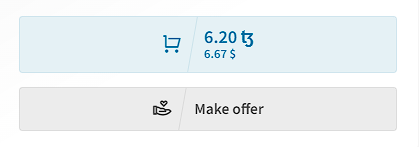
To create an offer on a token, navigate to the token page. Scroll down to find the "Make offer" button on the right-hand side.
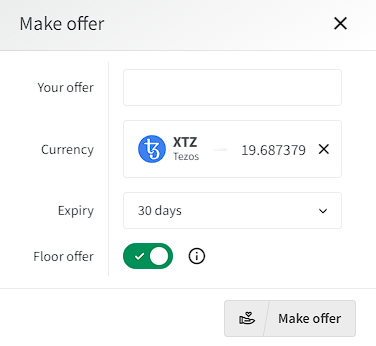
Specify the price you want to pay for the token, the currency, and the expiry date. Once you're satisfied with your input, click `Offer` and proceed with signing the transaction. It typically takes 10-20 seconds for the offer to appear on the marketplace.
### Creating a Floor Offer
On certain collections, it's possible to place an offer on any token within that collection. These are called `Floor Offers` and can be accepted by anyone who owns any token in that collection.
To create a floor offer, navigate to any token page within the desired collection. Click the `Make offer` tab, and you'll see a menu where you can set the floor offer flag.
{% hint style="info" %}
Floor Offers only work for certain collections (such as PFP collections like the Tezzards: [https://objkt.com/collection/tezzardz](https://objkt.com/collection/tezzardz))
{% endhint %}
{% hint style="warning" %}
Remember that creating a floor offer places an offer on all tokens within the collection, not just the specific token you're currently viewing.
{% endhint %}
Floor offers can be cancelled in the same way as normal offers.
### Accepting an Offer
To accept an offer on a token you own, go to the token page. You'll see a large red button saying `Sell for X`. Clicking this button will execute a wallet transaction accepting the highest current offer on the token.
### Accepting Multiple/Different Offers
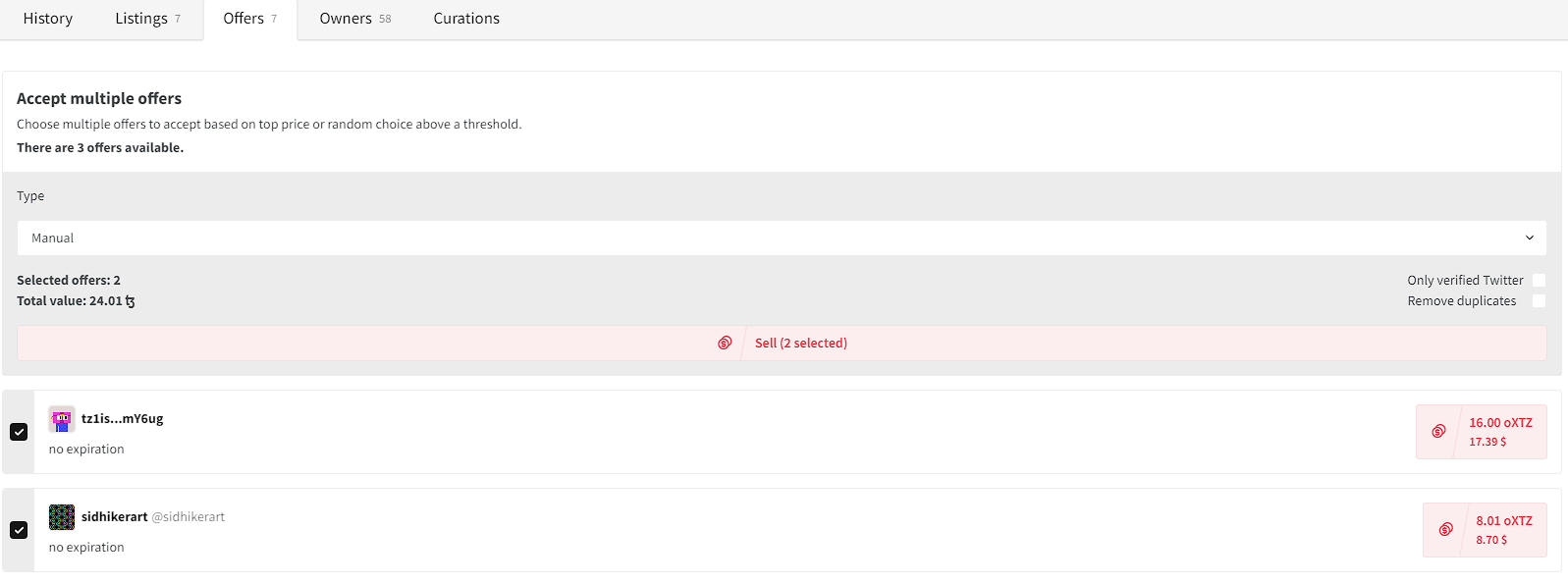
If a token you own has multiple offers, scroll down to `Offers` to see a list of all offers placed on the token.
From here, you can either execute individual offers by clicking `Sell for X` in the list of offers, or execute multiple offers at once.
{% hint style="info" %}
To accept multiple offers at once, ensure that you own multiple editions of the token you're viewing.
{% endhint %}
You can filter the list of offers before selecting any. The following filters are available:
#### Filter: Removing Duplicates
This removes all offers from the same wallet, keeping only the best offer each wallet has placed.
#### Filter: Verified Twitter Only
This removes all offers from users who haven't verified their Twitter profile. You can read more about this in the [Verify your Twitter](../../creating-a-profile#step-5-verify-your-twitter) section of the [Creating a Profile](../creating-a-profile) guide.
Additionally, you have different options for selecting the offers you want to execute:
#### Select: Manual
This allows you to manually select the offers you want to accept.
#### Select: Top Offers
This will select the top offers by value (maximizing your profits).
#### Select: Random
This will select offers randomly.
Once you're satisfied with your selection, click the large red `Sell` button to execute the offers. Note that it may take 30-60 seconds for your sale to be visible on objkt.
### Cancel a Single Offer
You can cancel your offer directly on the token page where you placed it. Under `Offers`, you'll find all your offers created for a token. You can cancel an offer by clicking `cancel` next to it.
### Cancel Multiple Offers
To cancel multiple offers, navigate to your profile and click on the `Offers` tab. You'll find a list of all the offers you've created. Check multiple rows and click `Cancel Selected` at the top to cancel multiple offers at once.
### Expired Offers
What happens when an offer expires depends on whether the offer is custodial (Tezos) or non-custodial (oXTZ, uUSD, etc.).
* Expired offer in Tezos:
* The offer no longer shows on the token
* The offer cannot be accepted (the contract would reject the transaction)
* The offer shows as expired on the "Offers" tab of the offer creator's profile (`/profile/…/offers`)
* Cancelling the offer returns the Tezos to the wallet that created the offer
* Expired offer not in Tezos (non-custodial, e.g., oXTZ, uUSD):
* The offer no longer shows on the token
* The offer cannot be accepted (the contract would reject the transaction)
* No need to cancel the offer
* Nothing can be sent back to the wallet that created the offer because creating the offer did not send anything